![Aputure_amaran_KnowledgeBase_Logo.png]](https://help.aputure.com/hs-fs/hubfs/Knowledge%20Base/company%20files/Aputure_amaran_KnowledgeBase_Logo.png?height=40&name=Aputure_amaran_KnowledgeBase_Logo.png)
Main Display
Battery time remaining Wireless connection status Battery level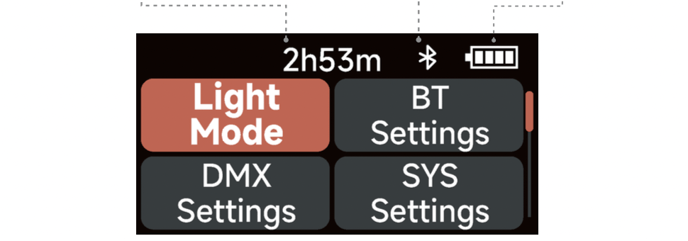
The wireless connection status (Sidus BT or CRMX) also shows in the Light Mode and Menu displays, so you can check the connection without leaving the menu.
DMX Status Screen
When the MC Pro is controlled over wired DMX or CRMX, the DMX Status Screen shows the DMX Profile name and number, battery level, CRMX signal strength, and DMX Address.
Menu
Press MENU to access the root menu. Rotate and press the Function Control Knob to select Light Mode / Sidus BT Settings / DMX Settings / System Settings.
- Light Mode
- Sidus BT Settings
- DMX Settings
- System Settings
Light Mode
Sidus BT Settings
Rotate and press the Function Control Knob to select Sidus BT Settings in the root menu. Rotate and press the Function Control Knob to select Sidus BT / Sidus BT Reset / Sidus BT UID.
Sidus BT: Turn Sidus BT On or Off.
Sidus BT Reset: Reset the MC Pro Sidus BT connection so your iOS or Android device can connect to and control the light with the Sidus Link app. Sidus BT Reset is greyed out when Sidus BT is Off.
Sidus BT UID: See the Sidus BT Unique Identifier.

Shortcut: Press and hold the Function Control Knob for 3 seconds to go straight to the Sidus BT Reset screen.
Only CRMX TX mode affects Sidus BT. In CRMX RX mode, Sidus BT and CRMX can both be On. If both are On when the MC Pro restarts, Sidus BT turns Off and CRMX stays On.
DMX Settings
Rotate and press the Function Control Knob to select DMX Settings in the root menu. Entering the DMX menu does not change the light output.
Rotate and press the Function Control Knob to select between:
- DMX Settings
- CRMX Settings
DMX Settings
Rotate and press the knob to select between DMX Address / DMX Profiles / DMX Loss Behavior / DMX Smoothing.
DMX Address: Rotate the Function Control Knob to set the 3-digit DMX address of the MC Pro.
DMX Profiles: Rotate the Function Control Knob to choose the DMX profile. Each profile shows its profile number, DMX resolution (8-bit or 16-bit), and total channels ("Ch"). The MC Pro has 24 profiles, including HSIC+ profiles in 8-bit and 16-bit.
DMX Loss Behavior:
1. Hold Last Look: After DMX signal is lost, hold the last look sent over DMX.
2. Black Out: When DMX signal is lost, fixture will black out.
3. Fade To Black: After DMX signal is lost, fixture will fade to black in 60 seconds.
4. Hold 2min & Fade Out: After the DMX signal is lost, keep the last control setting for two minutes, and then fade to black within 60 seconds.
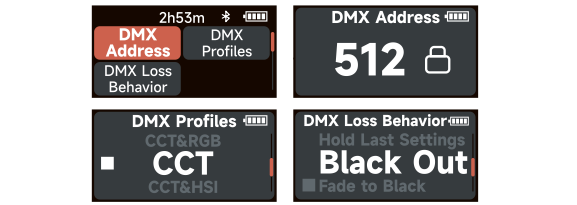
DMX Smoothing: Choose how smoothly the MC Pro moves between DMX values: Smooth, Super Smooth, or Off.
* The fade-out time decreases as the percentage of brightness decreases. When the brightness output is 100%, the fade-out time is 60 seconds, which decreases in sequence.
* If the signal is reconnected, the DMX console will continue to maintain the signal output as same as before.
CRMX Settings
Rotate and press the Function Control Knob to select CRMX Settings in the DMX Settings menu.
CRMX: Turn CRMX On or Off. When CRMX is On, the MC Pro continuously searches in the background for a linkable signal.
Mode: Choose RX (receive) or TX (transmit). TX mode shows more options, so a red scroll bar appears on the right of the screen.
Link: Shows "Not Linked" until the MC Pro is linked to a transmitter. When CRMX is Off, the screen shows "OFF" instead.
Unlink All: Disconnect the current link so the MC Pro can link to a different transmitter.
Linking Key: Shows the current Linking Key. Select it to edit the key.
The MC Pro appears in CRMX tools as "MC Pro - XXXXXX".

Only CRMX TX mode affects Sidus BT. In CRMX RX mode, Sidus BT and CRMX can both be On. If both are On when the MC Pro restarts, Sidus BT turns Off and CRMX stays On.
NOTE: The MC Pro does not show an animation while linking to a new Tx.
System Settings
Rotate and press the Function Control Knob to select System Settings in the system menu. Rotate and press the Function Control Knob to select between:
- Frequency Selection
- Language
- Product Info
- Studio Mode
- Factory Reset
Frequency Selection:
Rotate the Function Control Knob to adjust the light frequency by ±100Hz every turn.
 Language:
Rotate the Function Control Knob to select between English or Simplified Chinese.
 Product Info:
Rotate the Function Control Knob to select Product Info and see the Firmware Version / Hardware Version.
 Factory Reset:
Rotate the Function Control Knob to select Factory Reset. You can also press and hold MENU/RETURN for 5 seconds to go straight to the Factory Reset screen.
Factory Reset asks two more questions before it starts:
- Reset Sidus BT: Yes turns Sidus BT On and resets the Sidus BT connection.
- Reset CRMX: Yes unlinks CRMX and resets the Linking Key. After the reset, CRMX is in RX mode.
Answer No to keep that connection's link and On/Off state.

Factory Default Settings:
Intensity: 0%
CCT: 5600K
±G: 0
Sidus BT: On
DMX Address: 001
DMX Profile: Profile 1 (CCT & RGB 8b)
DMX Loss Behavior: Hold Last Look
DMX Smoothing: Super Smooth
CRMX: Off
Studio Mode: Off
Frequency Selection: 0Hz
Language: English