
The Auto-Patch and Auto-Configuration workflow starting in Sidus Link Pro 2.0, eliminates the need for manual, fixture-by-fixture programming. By centralizing Bluetooth resets, CRMX linking, and universe assignment into one sequence, you can move from a fresh rig to a fully configured network in minutes. Whether you are using the app for your final programming or simply as a high-speed configuration tool, Auto-Patching and Auto-Configuration ensures your entire rig is set up and ready for the job instantly.
Starting in Sidus Link Pro 2.2, Auto-Patching and Auto-Configuration now includes INFINIBARS when upgraded to V2.1 Firmware.
Step 1: Prep the Fixtures
First, on the each light Fixture, you must clear the existing Bluetooth connection on each light before the app can take control:
- Navigate to Menu > Control Settings > Sidus BT Settings > Sidus BT Reset > Yes.
- Button Shortcut: Press and hold the back button for 5 seconds to jump to this menu.
- Verify: Ensure Sidus BT Status is ON.
Step 2: Start Auto-Patch
- Add Lights: Tap the Green Plus (+) icon in the top right corner.
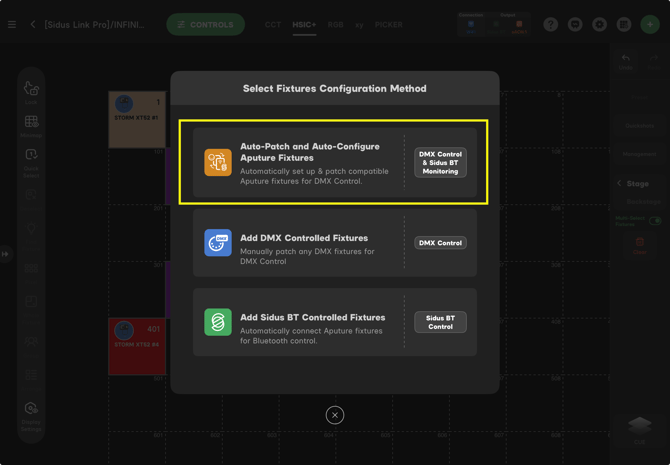
- Select Mode: Choose Auto-Patch and Auto-Configure Aputure Fixtures.
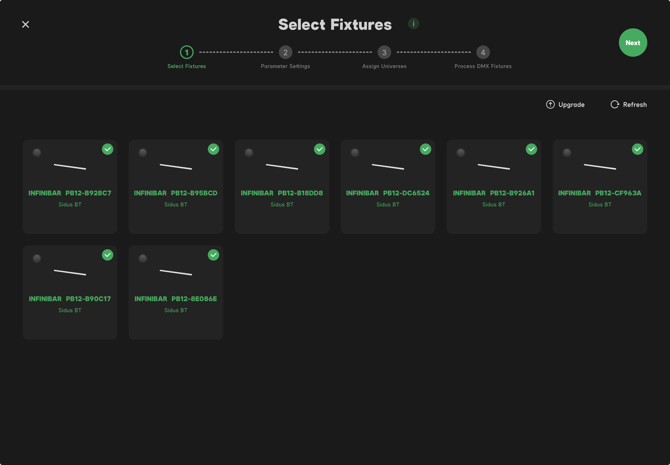
- Select Lights: Pick your INFINIBARs from the list and tap Next.
If an INFINIBAR needs to be updated, you can update directly from this screen. -
Connection: Wait for the app to finish the Bluetooth handshake for each unit.
Step 3: Parameter Settings
With the lights still selected, tap Next to define the configuration for all of the lights in this batch of Auto-Patching.
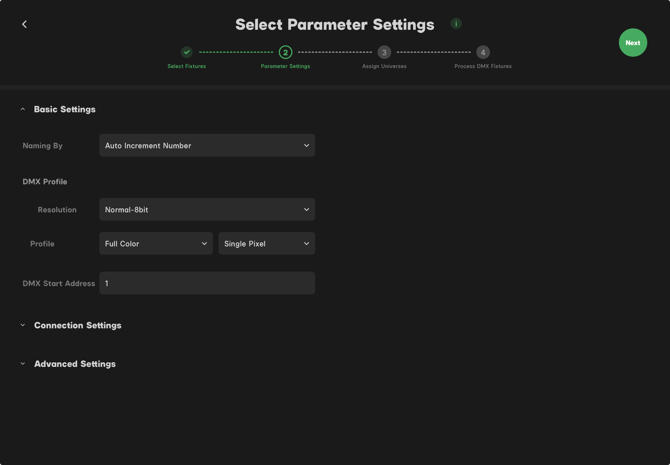
- Naming: For this, we will Select Auto Increment Number.
- Footprint: We will set to 8-bit / Single Pixel, and here is the opportunity to pixellate.
If you want all of your INFINIBARS to be patched at full pixelation or half pixelation, select it from the menu here. -
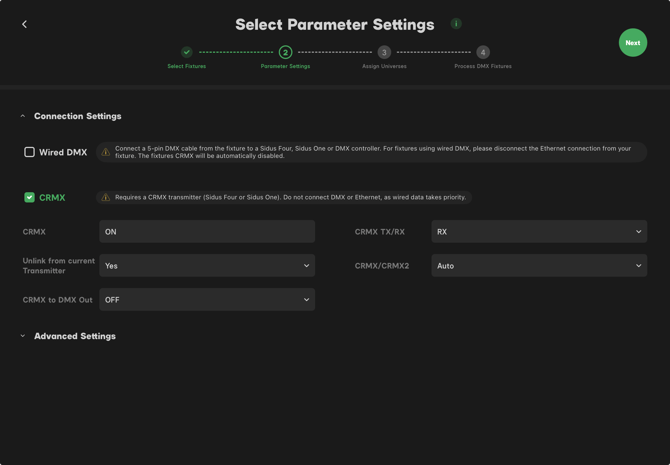
Wireless Link: we are using a Sidus Four as the transmitter. Toggle CRMX ON and select Unlink to force a new wireless bond.
Step 4: Advanced Behavior
These parameters are adjustable based on your specific production requirements:
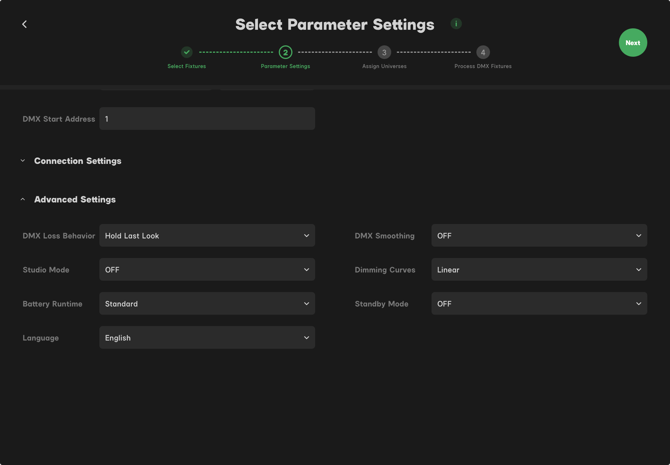
- DMX Loss: Set to Hold Last Look, or your preferred signal-loss behavior.
- DMX Smoothing: Set as required for your fixture response.
- Studio Mode: Set to ON or OFF based on whether your lights are in a more permanent environment
-
Tap Next.
Step 5: Universe Assignment & Processing
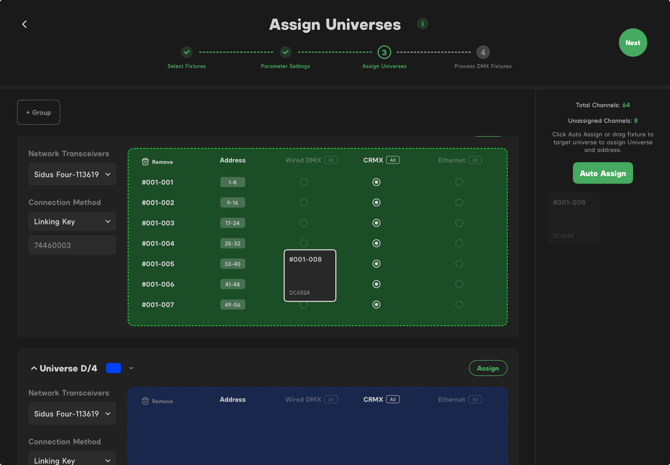
- Mapping: Drag and drop each light into its designated Universe. Each light will change to 20% intensity of the Universe color for the Universe that it is in.
- Shortcut: You can also press Auto Assign to have Sidus Link Pro automatically drop onto the universes where there are enough available channels without overlapping.
- Review: Tap Next to see the configuration summary.
Step 6: Process DMX Fixtures
- Adjust: On the final screen, you can now make individual adjustments to each light by changing its profile, DMX address or other setting.
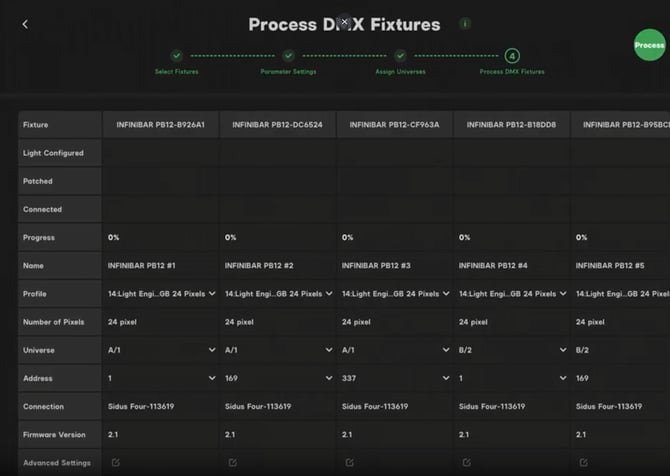
- Confirm: Once all the lights are set, press Process to initiate the Auto Patching and Auto Configuration sequence.
- First it will Auto Patch all of the light fixtures into Sidus Link Pro
- Then it Auto Configure every light by sending its DMX address, profile and more over Sidus BT.
- Lastly, it will automatically link with your Sidus Four by connecting the linking key or with your Sidus One by using the link command.
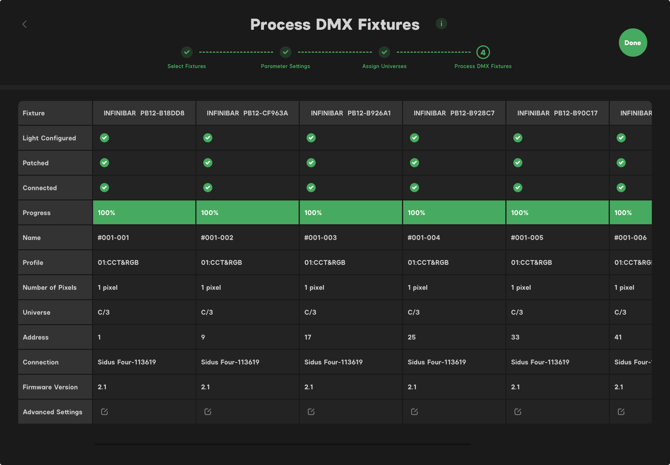
- Review: Once each light is successfully configured, the light output will turn green, and it will show 100% progress in the app. The lights will then appear on the stage, ready for control.
Conclusion
Your rig is now addressed, linked, and ready for the show.