
Overview
Auto-Patching assigns DMX addresses to pixel-capable fixtures for you. Tap one button and Sidus Link Pro analyzes the fixtures pixel count, assigns the applicable block of channels and patches the fixture into a universe. No manual addressing or fixture configuration necessary.
This article covers Auto-Patching for the INFINIMAT series of fixtures. For INFINIBAR, see Auto-Patching INFINIBAR. For an overview, see What is Auto-Patching?.
Before You Start
-
One or more INFINIMAT panels powered on.
- Ensure that the INFINIMAT's control box and all connected mats are running the latest FW.
-
Reset Sidus BT on the control box.
-
Sidus One or Sidus Four connected to your iPad or ready to connect.
-
Pro or MAX plan active for DMX patching.
Auto-Patch an INFINIMAT
-
In any view, besides Sidus BT View, tap the green + in the top toolbar.
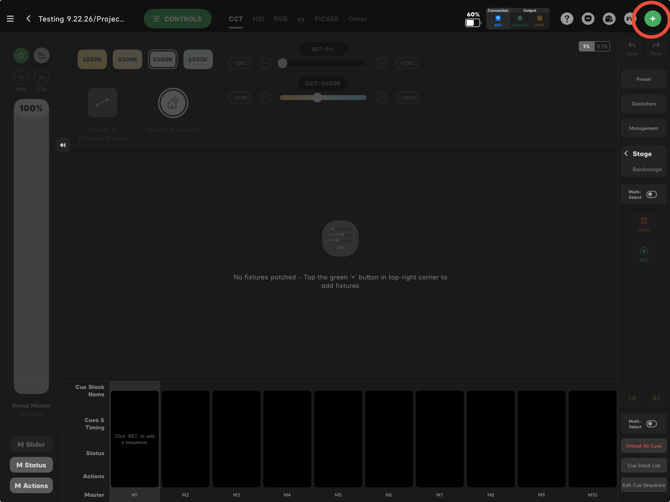
Figure 1: Green + Button
-
Choose Add New Fixtures > Auto-Patch and Auto-Configure Aputure Fixtures.
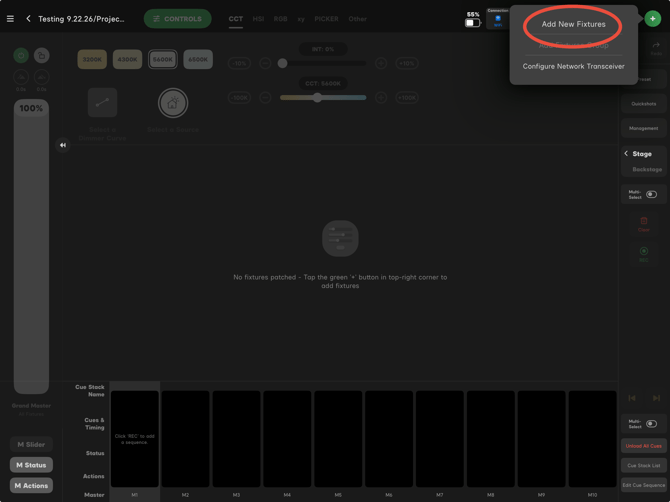
Figure 2: Add New Fixtures
-
Choose the INFINIMAT control box you'd like to Auto-Patch.
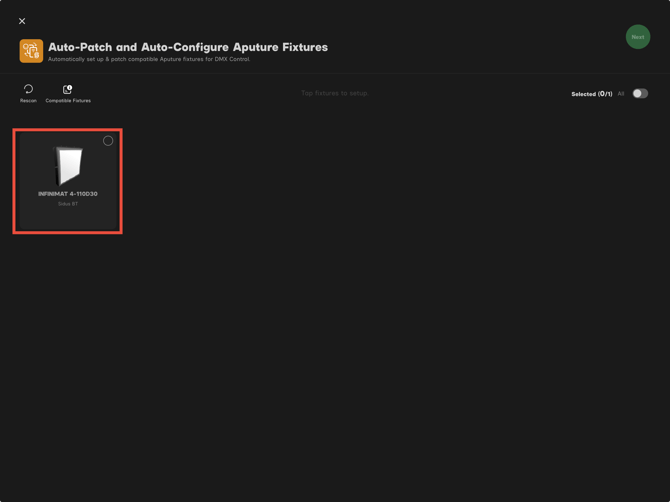
Figure 3: INFINIMAT Control Box to be Auto-Patched
-
Choose the universe and starting channel where you want the mat's patched, or choose Auto Assign to let the app choose for you. The app reserves the right number of channels for the mat's pixel count.
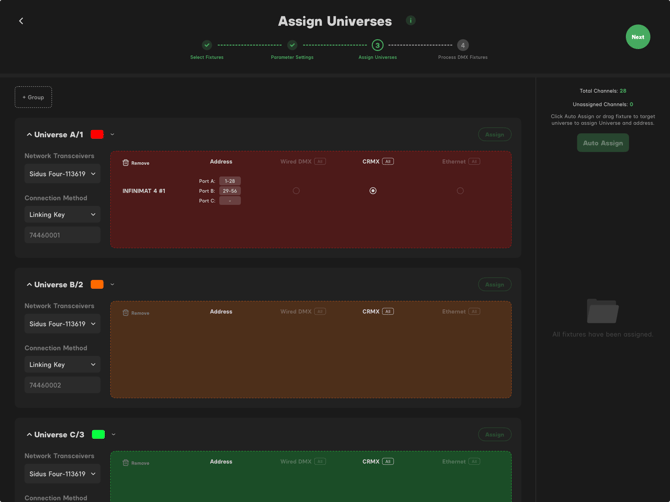
Figure 4: Assign Universes
-
Make any final changes to the profile, universe, address or Advanced Settings, then tap Process.
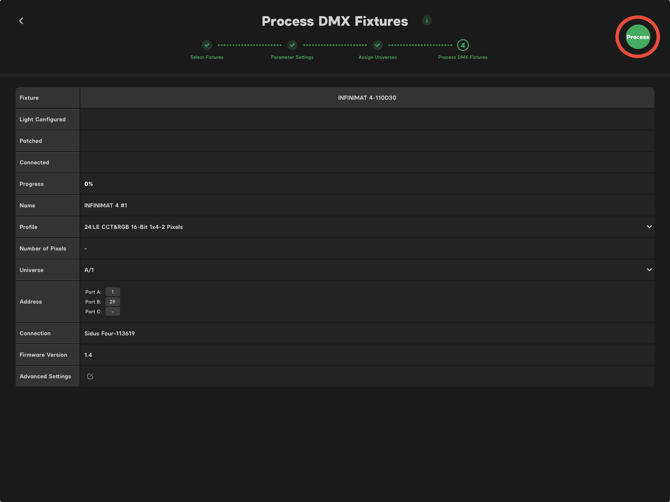
Figure 5: Process DMX Fixtures
-
Your INFINIMAT's will appear on Stage and will be ready to be controlled.
Multiple INFINIMAT's
When you Auto-Patch more than one INFINIMAT, the app addresses each mat sequentially, with no manual offset:
-
Mat 1 takes the starting channel you chose.
-
Mat 2 is patched directly after Mat 1, no gap.
-
Each mat's pixel grid is preserved separately so you can run different pixel effects per mat.
Pixel Control on INFINIMAT
Once Auto-Patched, each INFINIMAT appears as a fixture slider with a Pixel button on the bottom. Tap the Pixel button to open Pixel Control and make changes to each mat's pixels: per-pixel intensity and color.
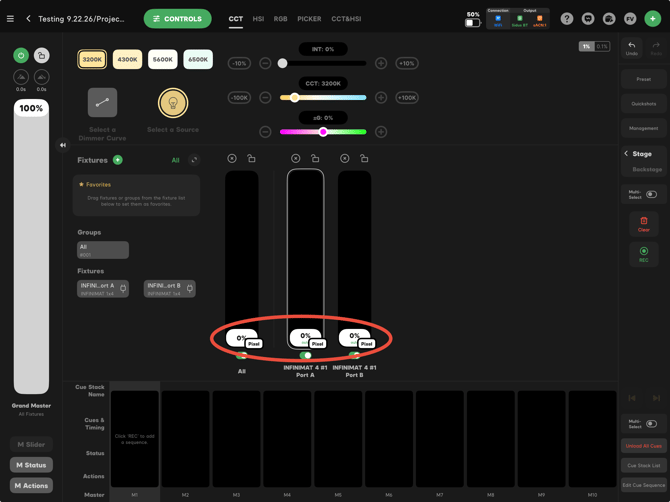
Figure 6: Fixture Pixel Button
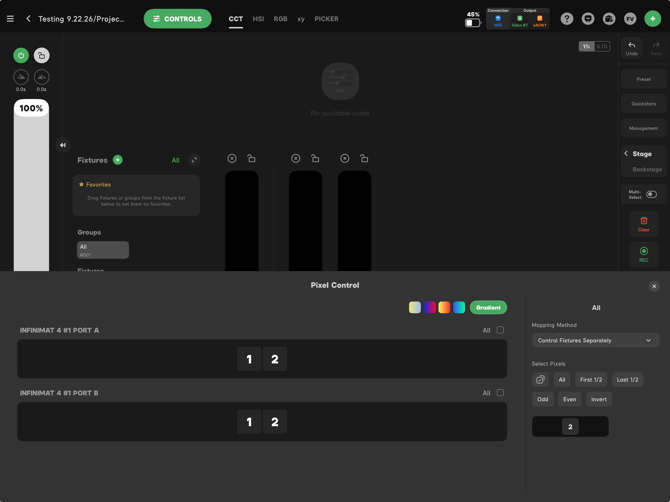
Figure 7: Pixel Control Interface
Verifying the Patch
Open Management and verify that the patch information is correct. Each mat that is patched to the control box will have it's own fixture card with a unique starting address.
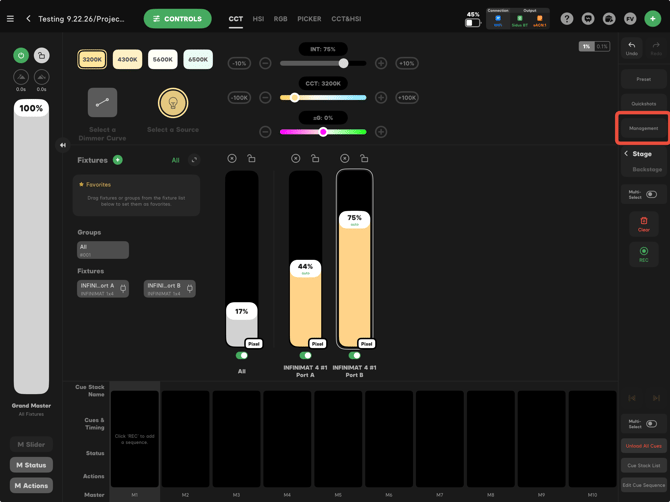
Figure 8: Management Button
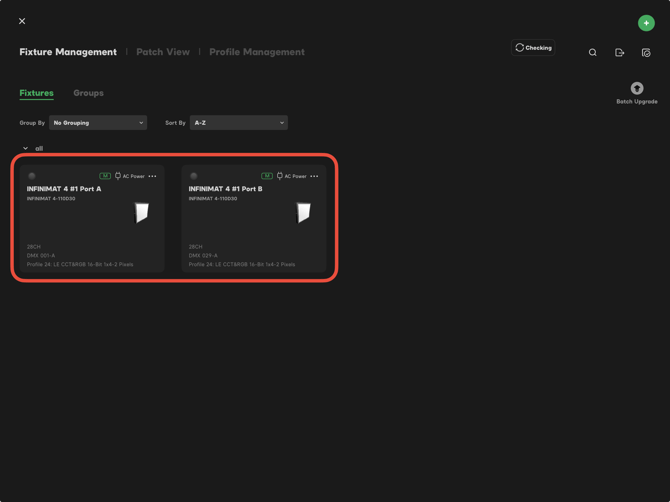
Figure 9: Fixture ID Cards
When to Patch Manually Instead
Auto-Patch is the right tool 95% of the time. Patch manually only when:
-
You need a specific non-sequential channel layout to match an existing show file.
-
You are running a hybrid setup where part of the panel is grouped with non-INFINIMAT pixels.
For manual patching, see Patching a DMX Fixture.
Related
Need Help?
See Getting Help & Support for the fastest way to reach the Aputure team.