
DMX Output Settings
To configure your DMX Output, set the protocol and choose your DMX Universes, access the DMX Output Settings Menu.
Accessing the Toggle
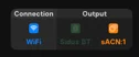
- Connection Status: Tap the Connection Icons near the top-right of the main interface.
-
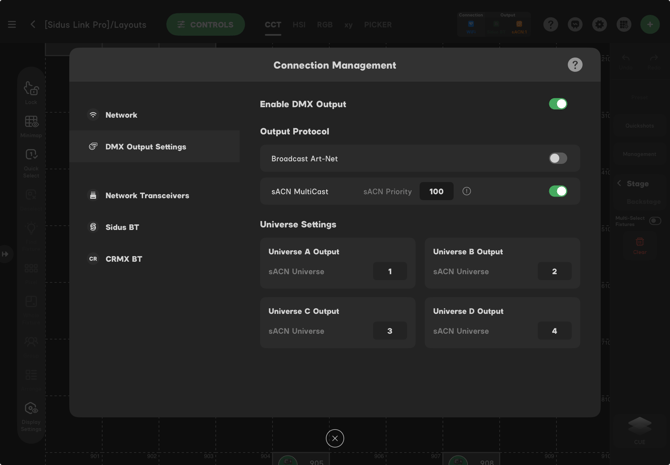
DMX Output Settings: Tap the DMX Output Settings tab on the left sidebar.
Key Functions
- Enable DMX Output: This is the primary toggle at the top of the menu. When active, the app transmits data via your selected protocol (Art-Net or sACN).
While you usually want your DMX output "On," there are specific professional workflows where killing the signal is necessary:
- Auto-Configuration: If you are using [Sidus Link Pro] strictly to configure fixtures for a secondary console, disabling the DMX output prevents signal conflicts while the primary controller takes over.
- Protocol Troubleshooting: Easily isolate your network by toggling output off to see if the app is the primary source of a specific lighting state.
-
- Subscription Management: Note that the Enable DMX Output button is tied to your Pro or MAX plan. If your subscription or trial ends, this toggle will lock in the "Off" position until the account is updated.
- Network Priority (sACN): Within this menu, you can set your sACN Priority (defaulted to 100). This is critical for managing which console has control of the rig in multi-source environments.
Output Protocol
Sidus Link Pro can send sACN Multicast or Broadcast Art-Net.
To set the protocol, enable sACN Multicast or Broadcast Art-Net.
Universe Settings
Sidus Link Pro can send 4 Universes of DMX with sACN or Art-net.
The default universes are 1,2,3 and 4. Note: when using Art-net, the user can utilize Universe 0. Sidus Link Pro skips this universe to align with the Sidus One. By allowing Sidus One to use Universes 1-4 we can unify the UI and prevent user confusion with Universe 0