
Overview
Fixture View is the default workspace for controlling DMX and CRMX fixtures in Sidus Link Pro. Each fixture shows as a slider on the stage with its name and live values. Tap a fixture to open its Parameter Controls and start adjusting.
If you are only working with Sidus Bluetooth lights, use Sidus BT View. For an alternative DMX layout that focuses on raw channels, see Channel View.
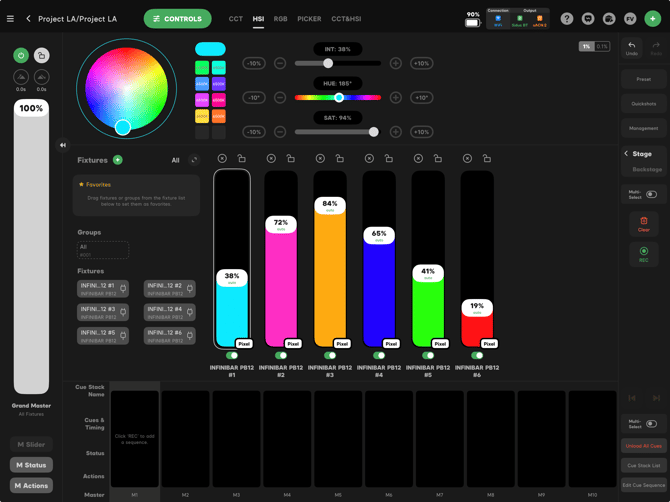
Figure 1: Fixture View
When to Use Fixture View
-
Day-to-day control of DMX or CRMX fixtures, where you want to see each fixture as a discrete object.
-
You need clear visibility into Intensity, CCT, HSI and FX per fixture.
-
You are building cues. Fixture View is the primary workspace that cues are recorded in. See Recording and Managing Cues.
The Stage
The stage is the main canvas in Fixture View. Each fixture slider shows:
-
Name - Whatever you named the fixture during patching.
-
Live Intensity - The master brightness, shown as a percentage on the fixtures slider.
-
Status Icons - Selection state, group and output level.
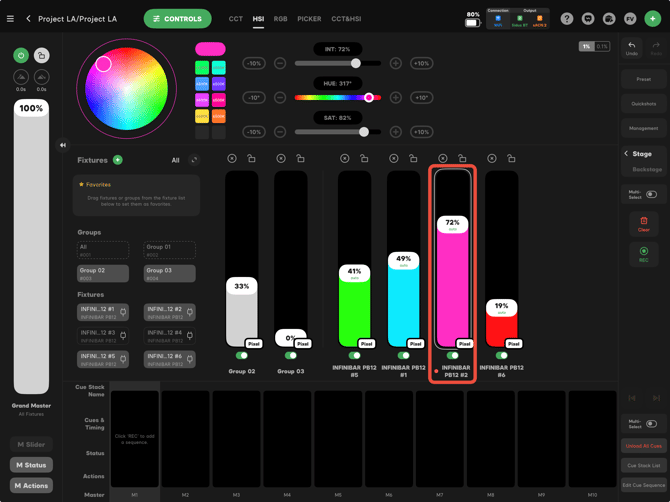
Figure 2: Fixture Slider
Selecting Fixtures
-
Single tap selects a fixture.
- Single tap the name under the fixture slider to open a context menu with these options: Rename, Firmware Update, Basic Settings, Advanced Settings, Connection Settings and Color Dot Selection.
-
All in the Fixtures area selects every patched fixture.
- Multi-Select allows for selecting multiple fixtures. When more than one fixture is selected, the Parameter Controls affect all of them at once.
Parameter Controls
Parameter Controls are located at the top of the screen. Parameter controls allow you to adjust all of the parameters for your fixtures, which include:
-
Intensity - How bright the fixture is
-
CCT - Color temperature for bi-color and full-spectrum fixtures
-
HSI - Hue, Saturation and Intensity for full-color fixtures
- RGB - Adjust the Red, Green and Blue channels
-
Plus/Minus Green - White-point fine-tuning
-
Effects - Opens the Effects panel.
- GELS - Offers a wide selection of professional color and color correction gels
- Picker - Use your devices camera to sample a physical color and replicate it on a fixture
-
Other - Per-fixture extras like Fan Speed, Dim Curve, Smoothing, etc. on supported lights.
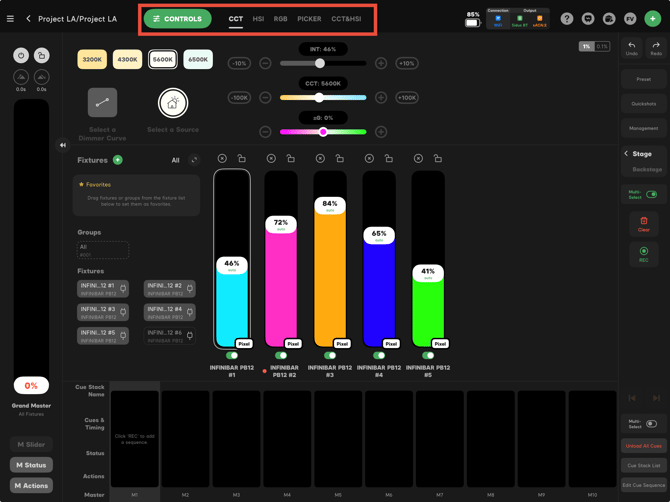
Figure 3: Parameter Controls
Groups
Group fixtures to control them as one. There are two methods for creating Groups.
- Press and hold a fixture slider, then drag it on top of another fixture's slider that you would like to create a group with.
- Tap the green + in the top-right corner of the screen and select Add Fixtures Group.
- Select the fixtures you'd like to add to the group, name the group, then press Confirm.
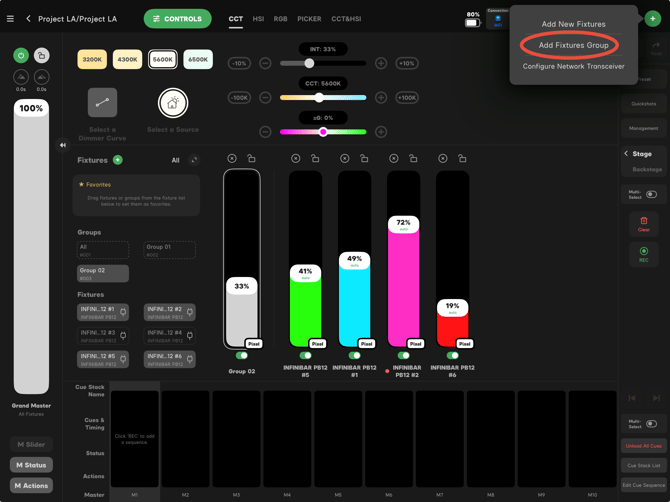
Figure 4: Add Fixtures Group Button
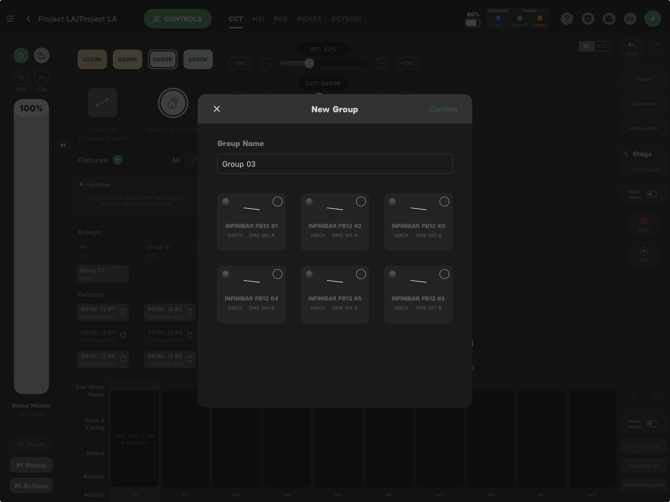
Figure 5: Select Fixtures to Add to Group
Toolbar
The Fixture View toolbar contains:
-
Green + - Add New Fixtures, Add Fixtures Group and Configure Network Transceiver
-
View Selection - Includes Fixture View, Channel View, Sidus BT View, Layout View and 3D Visualizer.
-
Tools - Includes Action Panel, Illumination Handbook and Create Local Backup
- DMX Output Window - Shows current DMX values per DMX address
- DMX Output Monitor - Shows a graphical representation of real-time, individual DMX channels
-
? - Shows help information for different elements in Fixture View
-
Connection Management - View and adjust connection settings, such as Network, DMX Output Settings, Network Transceivers, Sidus BT and CRMX BT.
- Device Battery % - Shows your devices current battery level.
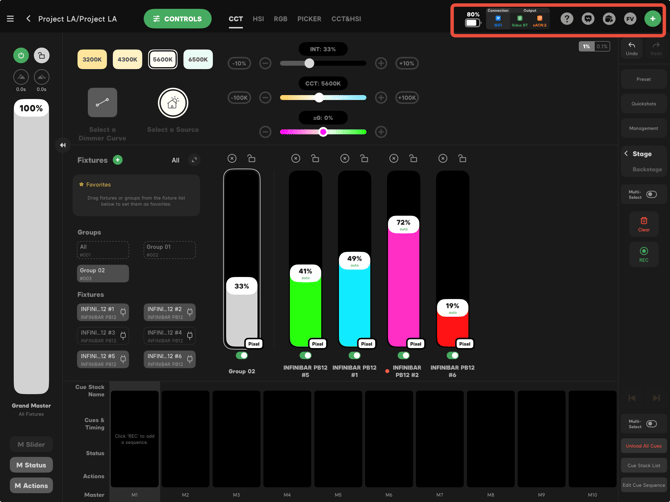
Figure 6: Fixture View Toolbar
Related
Need Help?
See Getting Help & Support for the fastest way to reach the Aputure team.