
1. Sidus Link® Account
1.1 Sign Up
Create a Sidus Link® account with an email address.
1.1.1 Sign up within the App
- Download and install the Sidus Link® App, tap the "Log in" on the Log in page;
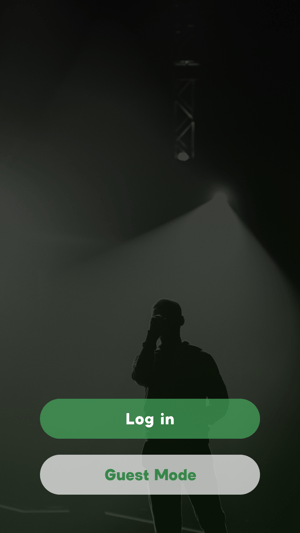
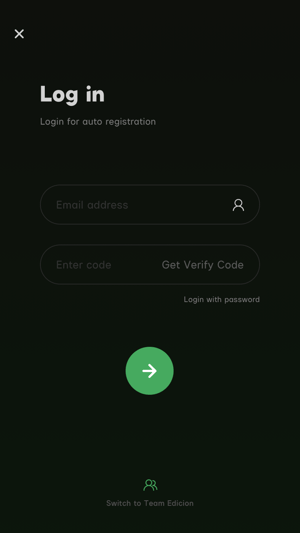
Figure 1.1.1-1 The Log in page in the App Figure 1.1.1-2 The Log in page in the App
- Enter email address then click the "Get a verification code" to request a verification code;
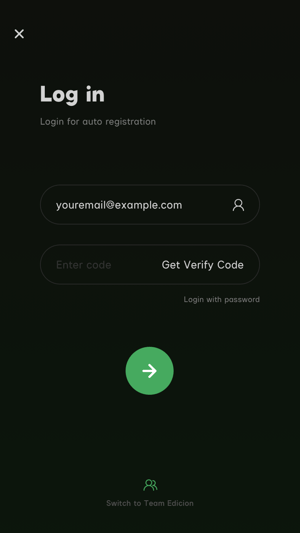
Figure 1.1.1-3 Request a verification code
- Sidus Link® will send an email with the verification code. Enter the verification code to create an account.
Figure 1.1.1-4 The verification email
Some email sever might mistakenly block the verification email, please check your spam mailbox for the verification code.
1.1.2 Sign Up via Sidus Link® Official Website
- Enter the Sidus Link® official website register page
.png?width=688&height=492&name=1.1.2_1@2x%20(1).png) Figure 1.1.2-1 Sidus Link® official website Log in page
Figure 1.1.2-1 Sidus Link® official website Log in page
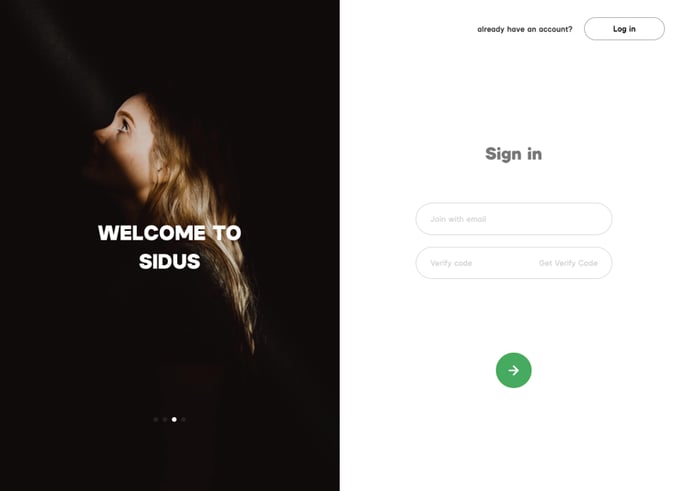 Figure 1.1.2-2 Sidus Link® official website register page
- Enter email address then click the "Get a verification code" to request a verification code;
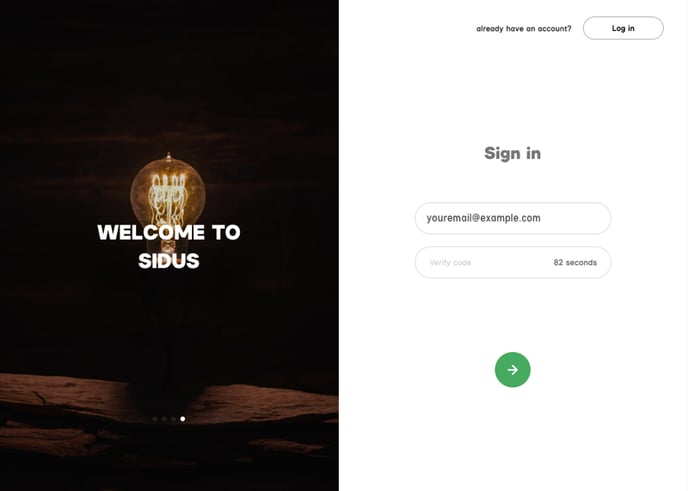
Figure 1.1.2-3 Request a verification code
- Sidus Link® will send an email with a verification code. Enter the verification code to create an account;
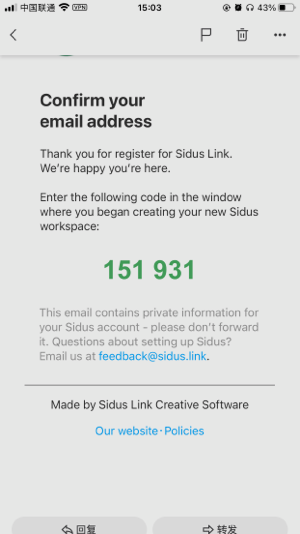 Figure 1.1.2-4 The verification email
- After register successfully on the official website, users could Log in to the Sidus Link® App with the same account.
Some email server might mistakenly block the verification email, please check your spam mailbox for the verification code.
1.2 Log in and Sign out
The Sidus Link® cloud service requires Sidus Link® account login, when users are using the functions that related to the cloud service (for example, save or apply Presets, Quickshots etc.), the App may ask users to log in again.
1.3 Account and Security
1.3.1 Forgot password
Tap "Forgot password" on the Log in page to request the verification code. Sidus Link® will send an email with a verification code. Enter the verification code to Log in.
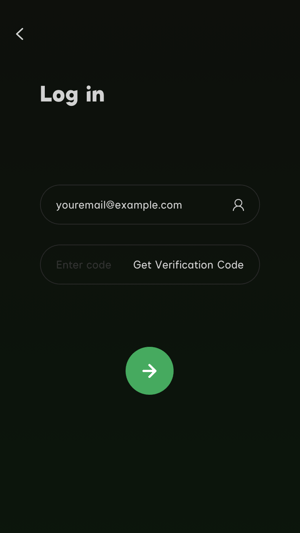 Figure 1.3.1 Log in with verification code
1.3.2. Change the Password
- After log in, tap the workspace menu button
 to enter the workspace;
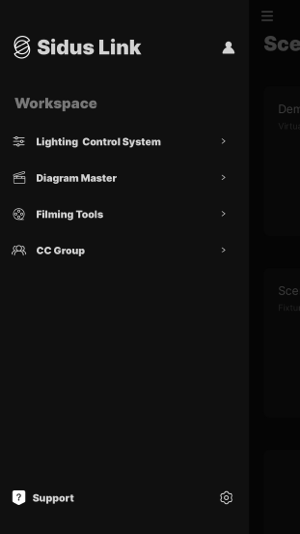 Figure 1.3.2-1 The workspace
- Tap the setting button
 at the bottom-right corner of the workspace;
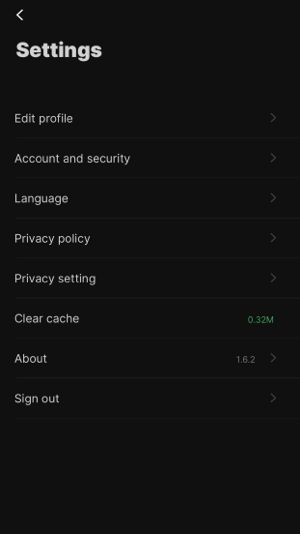 Figure 1.3.2-2 Setting menu
- Enter the "Account and Security" section to change the password;
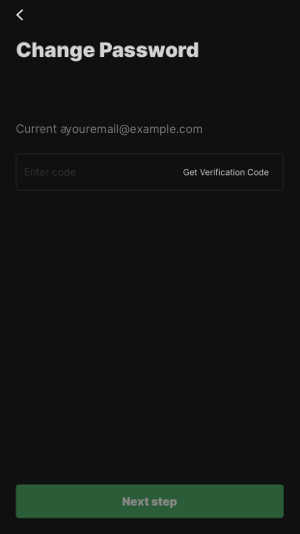 Figure 1.3.2-3 Account and Security
- Users need to verify the email address again to enter the password change page;
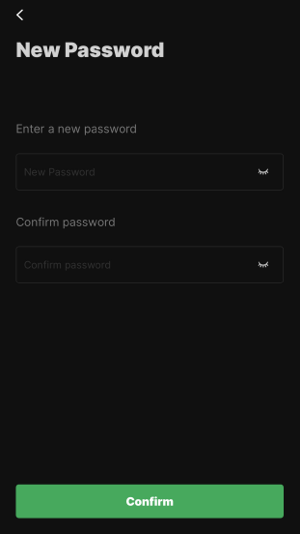 Figure 1.3.2-4 Reset the password
-
Enter the new password and confirm to change the password.
1.4 Account Offline Mode
Sidus Link® App offers free Cloud service, users need to log in to access the Cloud service and relevant functions. Sidus Link® offers the account offline mode for special circumstances. With the account offline mode, users have access to the functions that don't require Cloud service.
1.4.1 Functions with Cloud Service Requirement
- The Scene collaboration function in the Lighting Control System, the CC Group function and the CC collaboration function in the Diagram Master™;
- The auto-synchronization function in the Diagram Master™;
- The subscription upgrade function in the Sidus Link® iPad version;
- Settings: profile modifications, password reset and other information modification;
- The Inbox function.
1. Sidus Link® App does not support multiple devices login. When users log in to the same account on another device, the current device will be logged out. With the account offline mode, users could continue the lighting control on multiple devices;
2. With the account offline mode, users could use the Presets, Quickshot, Magic Program™ store and other lighting effects storage functions. However, the data won't synchronize to the Cloud.
1.4.2 The Offline Mode
- When the device has access to the internet, the account offline mode notification window pops out if logging in to the account on another device. Tap the "offline mode" button to enter the account offline mode. Users could use the same account on multiple devices;
- When the device does not have internet access, user could still use the App without the account Off-line mode. However, users won't able to use the functions that requires internet connection, for example, the CC Group function; Users won't able to download and apply the data that saved in the Cloud space as well.
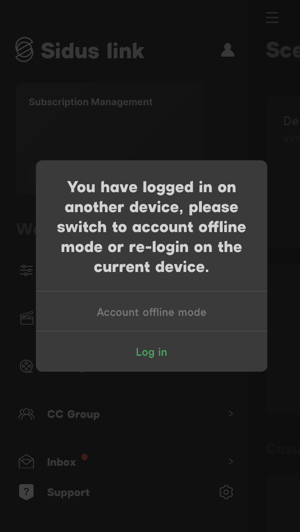 Figure 1.4.2 Account offline mode notification window
1.4.3 Matters Need Attention
- The account offline mode expires in 7 days, users have to log in within 7 days to continue to use the Sidus Link® App. When the account offline mode expired, users are not able to access the account offline mode. Users could regain access to the account offline mode after login. Users could check the remaining time of the account offline mode in the workspace;
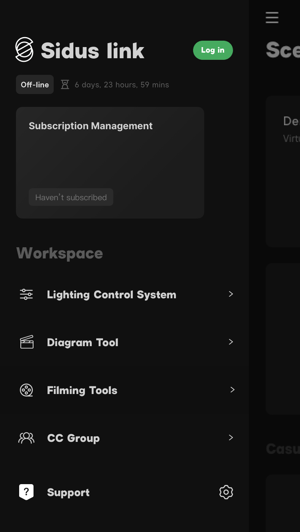 Figure 1.4.3-1 Remaining time of the account offline mode
- Tap the login button in account offline mode to exit. Users have to log in to continue to use the Sidus Link® App once exit the account offline mode;
- If users tap the OK button on the account offline mode notification window, users will exit the account offline mode and enter the login page. Users have to log in to continue to use the Sidus Link® App once enter the login page.
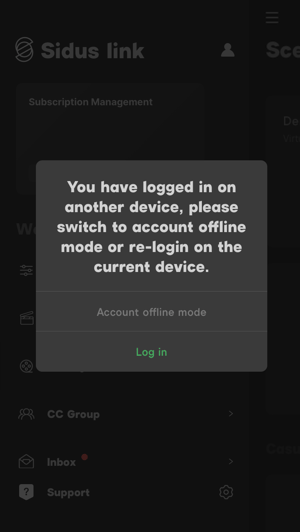 Figure 1.4.3-2 Account offline mode notification window
Sidus Link® App uses the Sidus Mesh® technology that based on Bluetooth, this technology is not limited by the internet conditions. The Sidus Link® App can control fixtures without internet access.
1.5 Guest Mode
Sidus Link® App supports user to log in the App as a guest while the guest will not be asked to log in account. Guest user may use the App functions, without cloud service involved.
1.5.1 Guest Enter the App
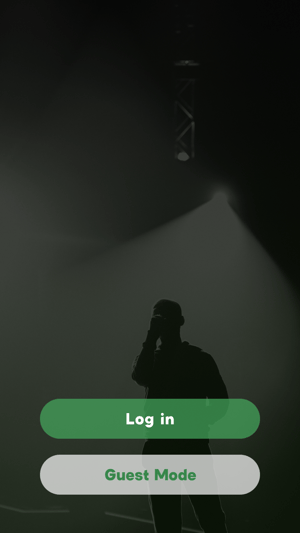
Figure 1.5.1-1 The Log in page in the App
1.5.2 Guest Login
After logging in Sidus Link® App account, guest user may choose whether to combine the use data generated under guest mode with the data of the account. The combined data include Scene file, Quickshots, and Diagram Master™ projects. If data combination is selected, the use data of guest user will be copied to the account data, and then be cleared. If data combination is rejected, the App data generated under guest mode will be kept.
1.5.3 Functions with Cloud Service Requirement
- The Scene collaboration function in the Lighting Control System, the CC Group function and the CC collaboration function in the Diagram Master™;
- The auto-synchronization function in the Diagram Master™;
- The subscription upgrade function in the Sidus Link® iPad version;
- Settings: profile modifications, password reset and other information modification;
- The Inbox function.
One mobile device is only to generate the data of one guest user.
2. Subscribe to Sidus Link® Pro plans
Sidus Link® for iPad provides free access to the basic lighting control features. And, every user could get a 7 days free trial of any paid plan.
2.1 The Free Features
White, GEL, Color, System effect and Manual FX in the Effect.
2.2 Subscribe to the Sidus Link® Pro Plans
The entrance of the subscription is located on the workspace page. Open the Sidus Link® for iPad, enter the workspace page, tap the subscription card at the up-left corner of the workspace to enter the detail page.
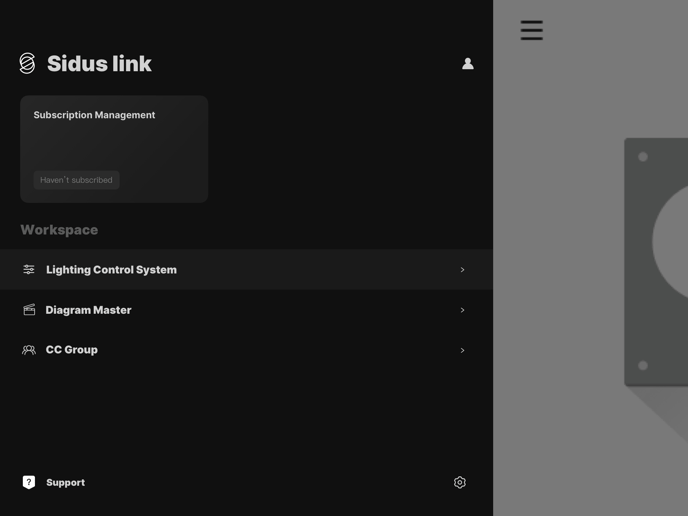
Figure 2.2 The workspace page in the Sidus Link® for iPad version.
2.2.1 Manage the Subscription
- Tap the subscription card to enter the subscription management page;
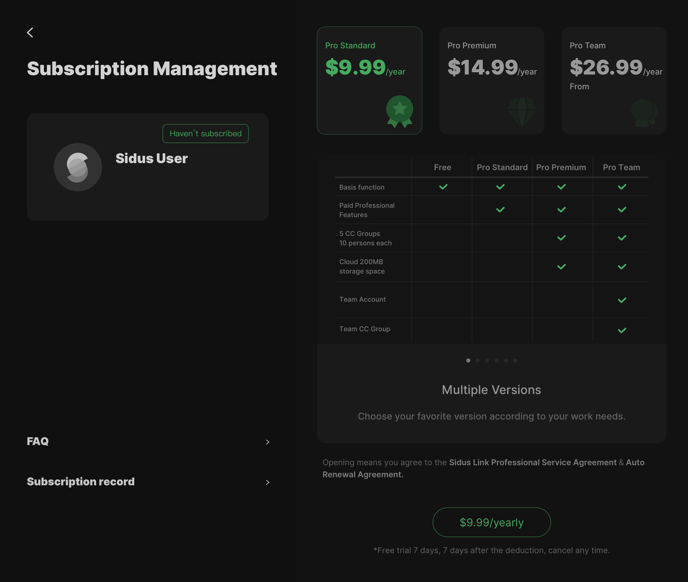
Figure 2.2.1-1 Subscription management page
- Tap different plans to check the details;
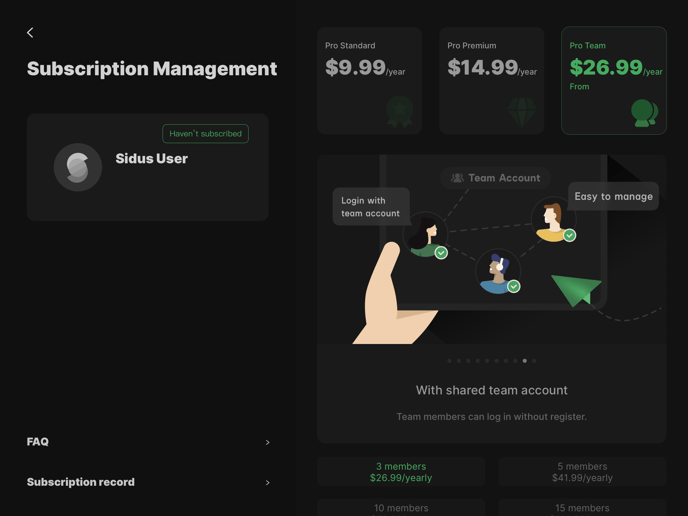 Figure 2.2.1-2 Multiple subscription plans
- Tap the payment button and follow the App store payment workflow to purchase Sidus Link® Pro plans.
2.3 Introduction of the Sidus Link® Pro Plans
The subscription period is yearly, the displayed price in the App is the fees for a year.
2.3.1 The Pro Standard Plan
- Features: Picker FX; Magic Program™; Music FX; Console(Full); Diagram Master™; future new features;
- CC Group: Maximum 1 CC groups at one time; users can add up to 3 members in each CC group;
- Cloud Space: 50M.
2.3.2 The Pro Premium Plan
- Features: Picker FX; Magic Program™; Music FX; Console(Full); Diagram Master™; future new features;
- CC Group: Maximum 5 CC groups; users can add up to 10 members in each CC group;
- Cloud Space: 200M.
2.3.3 The Pro Team Plan
- Features: Picker FX; Magic Program™; Music FX; Console(Full); Diagram Master™; future new features;
- Members: the maximum amount of team members is 30;
- CC Group: Maximum 5 CC groups; users can add up to 10 members in each CC group;
- The Pro team plan will generate a CC group with all members automatically(which means that the Pro team plan could have a maximum of 6 CC groups.);
- Cloud Space: 200M;
- With the team plan, team members can log in without register.
Fees see the in-App purchase page.
2.4 Subscription Expiration Reminder
There will be a pop-out window in the App 15 days before the subscription expiration date.
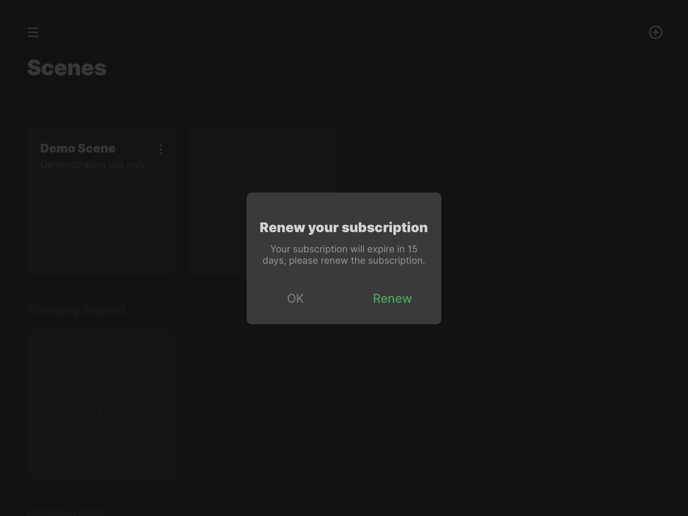 Figure 2.4 The expiration reminder
2.5 FAQ of the Subscription Service
Users could check the FAQ page for the frequently asked question of the subscription service.
2.6 Subscription Record
-
Users could check the subscription record in the subscription record;
-
Tap the "Details" button on the subscription record card to check the order number and transaction time.
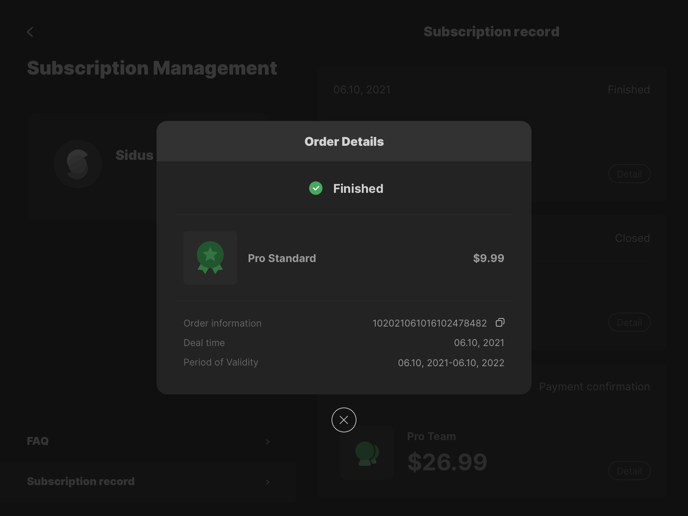 Figure 2.6 Order details
3. Sidus Link® Cloud Service
Sidus Link® App provides free cloud storage for every user. Users could synchronize the data of Scene information, Presets, Quickshots, and CC Groups to the Sidus Link® Cloud space. With the free Sidus Link® Cloud service, users are able to use the Presets and Quickshots with any smart device.
3.1 Use the Could Service
To use the free Sidus Link® Cloud service, users need to register a Sidus Link® account first.
Users need to log in to the Sidus Link® account before using the Sidus Link® Cloud service, users need to keep the Sidus Link® account logged in.
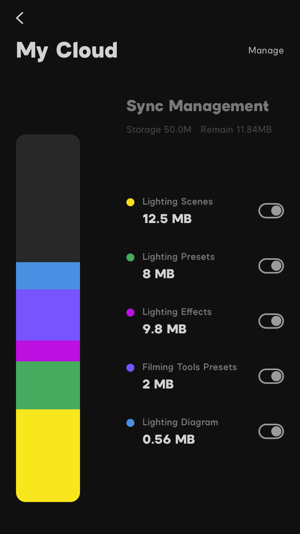 Figure 3.1 Sidus Link® Cloud service
- Users could check the real-time Sidus Link® Cloud storage status;
- It will take some time to synchronize the data from the Sidus Link® Cloud service to the device when reopening the scene;
- Users could turn on or turn off the synchronization service.
3.2 Upgrade the Cloud Space
Users could update the Cloud space to a maximum of 200MB via the purchase of the Sidus Link® Pro plans. Check 2.3 Introduction of the Sidus Link® Pro Plans for more details.