
1. CC Group
CC Group is an efficient tool for team collaboration via the Sidus Link® App. Team members can share the scene and control the fixtures together via the CC group.
Use CC Group in the Sidus Link® workflow: After finishing the scene set-up, the rigging crew can share the scene with 1st Unit. On filming day, the joined team members can control the fixtures simultaneously via their individual mobile devices.
Here are two types of CC Group:
1) Group Created
2) Group Joined.
2. Create a CC Group
1) Tap the Main Menu burger in the top left corner.
2) Tap "CC Group" in the main menu to enter the CC Group interface.
3) Tap the green plus button under "Group Created" to create a CC Group.
Users can only create one CC Group with the free Sidus Link® App. Only the group creator can manage the CC Group.
The free Sidus Link® App allows a maximum of 3 members to join (group creator counted).
Creating or joining the CC Group requires internet access.
.png?width=300&height=534&name=2@2x%20(1).png) Figure 2 Group created
Figure 2 Group created
3. Members Invitation
The CC Group creator can invite members to the group with a Sidus Link® email account or team account invitation, as well as via a collaboration code.
3.1 Invitation via Sidus Link® Account
- Tap the green "+" button in the created group. Enter the Sidus Link® account register email address and send the invitation;
- Users could check the invitation in the CC Group interface, accept the invitation to join the CC group;
- The group creator could check the invitation history in the invitation interface.
Pull to refresh the page for the invitation status.
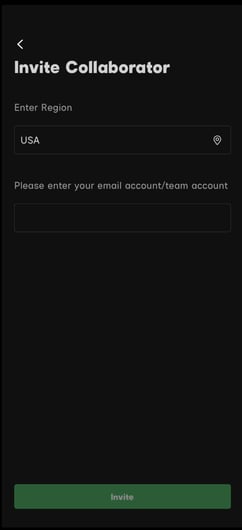
. Figure 3.1-1 Send invitation
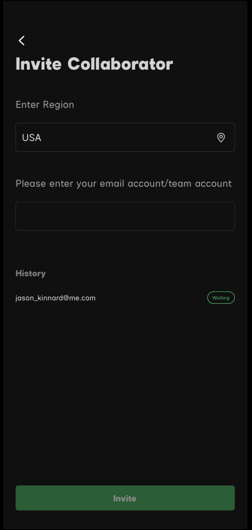
Figure 3.1-2 Enter the email address to invite a team member
3.2 Invitation via Collaboration Code
Click the "Code" button in Group Created to get a four-digit collaboration code (expires in 1 hour). Tap the green + button under Group Joined in the CC Group interface and enter the collaboration code to join the CC group.
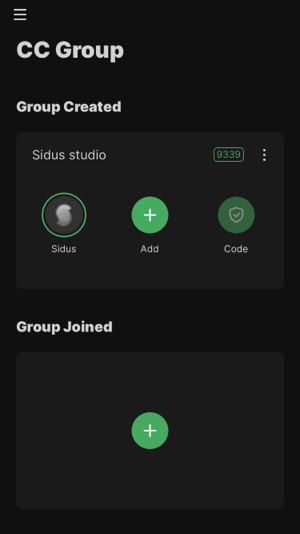 Figure 3.2 Invite team member via collaboration code
Users can also find "Add Collaborator" and "Collaboration Code" functions in the menu of created CC Group.
4. CC Groups Management
Users can rename, add collaborator, apply collaboration code and dismiss the CC Group via the CC Group management menu.
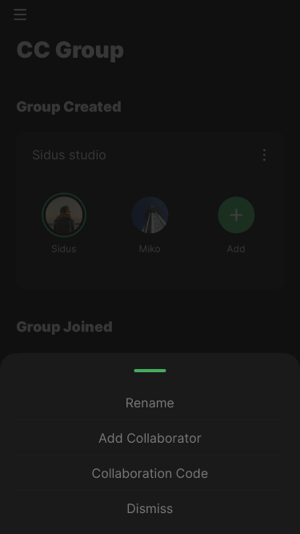 Figure 4-1 CC Group management menu
- Remove members: Long-press the team member profile and click delete to delete the team member.
- CC Group Rename: Rename the group. Team members need to pull down the CC group page to refresh the group name.
- Add Collaborator: Add collaborator by email invitation. When the group member amount is exceeded, this option will turn grey.
- Collaboration Code: Invite group members by collaboration code. When the group member amount is exceeded, this option will turn grey.
- Dismiss: Remove all members and delete the group. Group members will receive a group dismissed notification.
The Management menu of the group joined: Quit Group.
- Quit Group: Tap to quit the joined group.
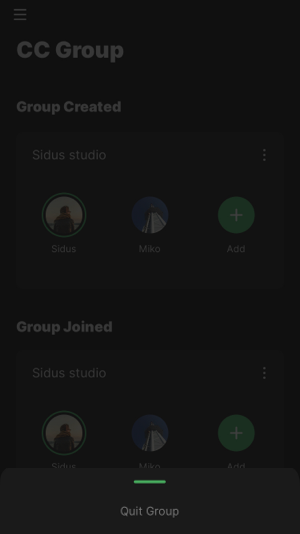 Figure 4-2 Quit group
5. Join a CC Group
Users could join a group by account invitation or collaboration code.
Accept the Invitation:
User will receive the invitation message in the CC Group interface. Users can accept or reject the invitation.
Join with the Collaboration Code:
Click the green "+" button on the blank CC Group card below the "Group Joined" title and input the collaboration code to join.
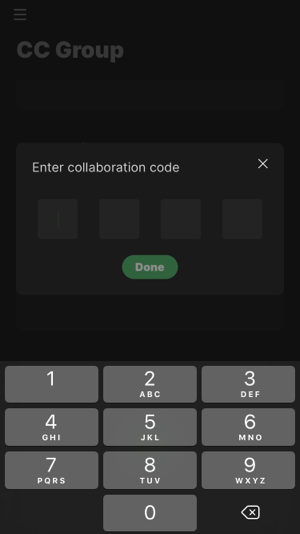 Figure 5 Group joined
When all CC Group member position is filled, users could not join the CC Group;
The four-digit number Collaboration Code is only available in 1 hour of validity.
6. Upgrade CC Group
Purchase the Sidus Link® Pro plan to upgrade CC Group:
- Pro standard plan: maximum 1 CC groups at one time; users can add up to 3 members in each CC group;
- Pro premium plan: maximum 5 CC groups; users can add up to 10 members in each CC group;
- Pro team plan: maximum 5 CC groups; users can add up to 10 members in each CC group; the Pro team plan will generate a CC group with all members automatically(which means that the Pro team plan could have a maximum of 6 CC groups.)
Fees see the in-App purchase page.