
With the release of version 2.2, Sidus Link Pro introduces Layout View, a spatial interface that replaces the struggle of scrolling through long menus and memorizing fixture numbers. By mirroring your actual set on a 100 x 100 grid, Layout View gives you instant visual feedback, rapid navigation, and precision control over every pixel in your rig.
Getting Started: Opening the Map
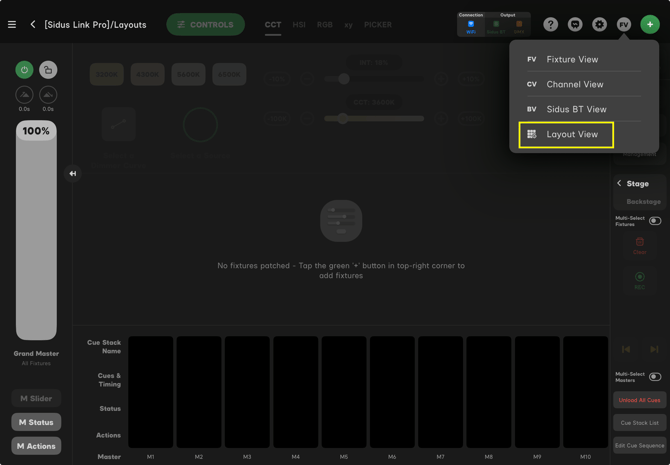
Accessing the Layout View is a straightforward process within the Sidus Link Pro interface. Follow these steps to enter the spatial grid:
- Open Your Project: Start by opening a New Project or open an existing one
- The FV Menu: Look toward the top right of the screen, specifically near the green plus (+) icon. You will see a button labeled FV (Fixture View).
- Switch to Layout: Tap the FV button and select Layout View from the dropdown menu.
-
The Guided Tour: Upon your first entry, Sidus Link Pro will launch a brief, interactive tutorial. We highly recommend following this through, it’s a quick "handshake" with the new tools that will save you time later, regardless of your experience level.
Free Plan vs. Pro/MAX Plans
To keep it simple: The Free Plan is designed for basic Bluetooth-only setups using Sidus BT. The Pro and MAX Plans unlock the full DMX/CRMX toolkit required for complex networking and individual pixel control.
|
Feature |
Free Plan |
Pro & MAX Plan |
|
Compatible Lights |
Sidus Bluetooth (Aputure/amaran) only. |
Sidus Bluetooth + all DMX/CRMX fixtures. |
|
Spatial Grid |
100 x 100 layout available. |
100 x 100 layout available. |
|
Real-time Feedback |
Visual intensity/color updates on the grid. |
Visual intensity/color updates on the grid. |
|
Pixel Control |
Not included. |
Full individual pixel control directly in the layout. |
|
Status Icons |
Standard intensity/color feedback. |
Shows control source (Stage vs. Cue) with color dots. |
Populating the Grid: Patching Your Lights
Now that your grid is open, it’s time to add your gear. Whether you are using Bluetooth or a complex DMX network, the entry point is the same.
- The Add Button: Look to the top-right corner, immediately to the right of the FV menu. Tap the green plus (+) button.
- Fixture Selection: This will open the patching menu. From here, you can choose to add Aputure fixtures via Sidus Bluetooth or select fixtures from the DMX library.
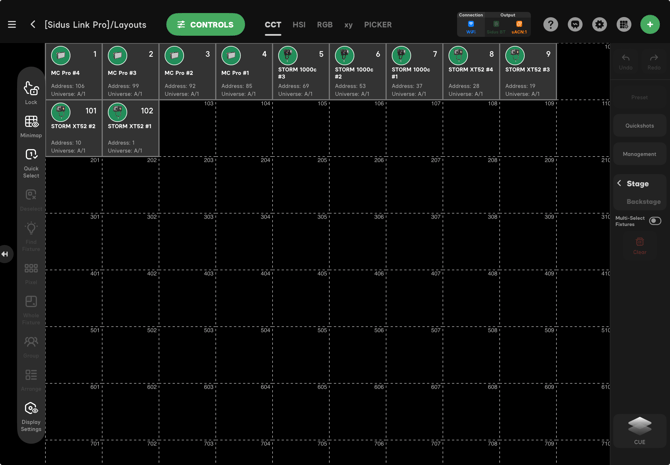
Automatic Placement: Once patched, your fixtures will appear on the grid. By default, Sidus Link Pro will begin populating these in order, but the real power comes from the next step: Arranging the Layout.
Pro Tip for Patching: Keep in mind that if you are on the Free Plan, only your Bluetooth-connected lights will be available to patch and view on this grid. Pro and MAX users can proceed to patch their entire DMX universe(s) and see them appear here instantly.
Building Your Rig
To see the power of the layout in a real-world scenario, we’ll walk through patching a standard professional kit. For this tutorial, we will be adding the following fixtures to our project:
4x Aputure STORM XT52s, 3x STORM 1000c, 4x MC Pros
The Patching Process:
- Begin Patching: Tap the green plus (+) button in the top-right corner.
- Add Your Fixtures: Locate and select the STORM XT52, STORM 1000c, and MC Pro from the fixture library.
- Confirm and Populate: Once you confirm the patch, Sidus Link Pro will automatically populate these fixtures onto your grid.
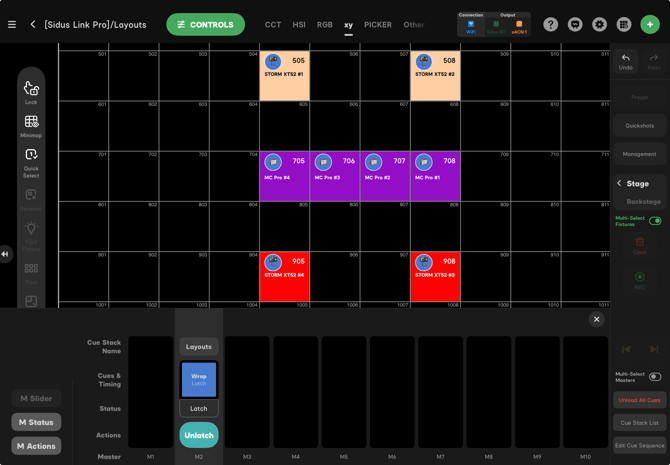
Once these fixtures are added, they will appear as icons on your grid. Now that the fixtures are in the project, the next move is to organize the grid to match your physical set.
Selecting and Arranging Your Fixtures
Once your fixtures are on the grid, you can organize them to suit your workflow. Selection and movement are handled with a few specific gestures:
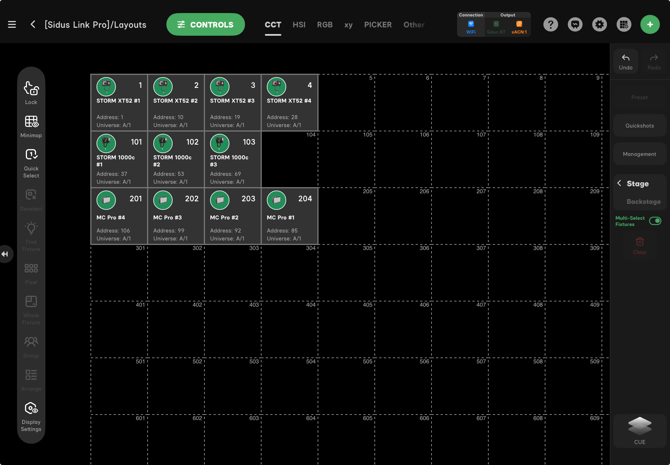
- Individual Selection: Tap a fixture to select it. If you need to grab multiple lights in a specific order, continue tapping them one by one. You’ll see a numerical indicator on each icon showing your selection sequence.
- Box Selection: Use your finger to draw around a set of fixtures to select them as a group. This allows for the simultaneous selection of multiple lights for unified movement or control.
- Correcting and Clearing: If you select the wrong light, just tap it again to deselect it. To clear your entire selection and start over, tap any empty space on the grid.
- Arranging: After you’ve made your selection, drag with one finger to move the fixtures to their new position.
- Undo is Your Friend: If you accidentally move the wrong unit, the Undo icon is at the top right of the screen.
For now, we’ve arranged these in a simple stack as our day has just begun.
Real-Time Feedback: Seeing the Results
The true power of Layout View isn't just in the organization—it’s in the live data. The Layout View acts as a real-world preview of your set. Instead of guessing which light is doing what, the layout provides instant visual confirmation:
- Live Color & Intensity: Every cell on your 100 x 100 grid mirrors the light it represents. If your STORM 1000c is set to 100% in red, the corresponding square on your iPad will turn red at 100% brightness.
- Cue Monitoring (Pro & MAX): For those on Pro or MAX plans, this feedback extends into your automation. You will see light values update in real-time as your Cues run, allowing you to monitor complex lighting transitions directly from the map.
Understanding Status Indicators
The color-coded dots on each fixture icon are your primary source of feedback. They identify the Command Origin, allowing you to see at a glance which part of the software is currently driving the light.
- Green (Stage): This indicates Manual Control. You are currently adjusting the fixture live. Manual adjustments always take priority over recorded cues.
- Blue (Cue): This indicates Playback Control. The fixture is currently being driven by a recorded cue. If you change the light manually while it is green, the dot will turn blue to show the manual override.
- Yellow (Backstage): This indicates Blind Programming. The light is being adjusted in the Backstage area. This allows you to prep a new look or check parameters without the changes showing on the set until you are ready to push them live to the Stage.
The Command Hierarchy
Monitoring these indicators is essential for managing your workflow:
- Identify Overrides: If a light isn't responding to a cue, look for the Green Dot. It means the fixture is "pinned" to a manual value on the stage which is ignoring the cue.
- Verify Playback: A Blue Dot provides instant confirmation that your automation is active and the fixture is receiving the correct data from your cue list.
- Prep in Secret: A Yellow Dot confirms that your adjustments are safe and "blind," ensuring no accidental changes happen on camera during a take.
By providing this "View to Match," Layout View ensures you aren't just controlling what you remember, but exactly what you see.
Real-Time Programming and Feedback
The Layout View is more than a navigation tool; it is a fully integrated programming interface. Selecting a fixture on the grid immediately grants you access to its complete set of parameter controls without needing to jump between views.
- Integrated Control: Once a fixture is selected—such as our MC Pros—you have full access to its intensity, CCT, HSI, and other parameters.
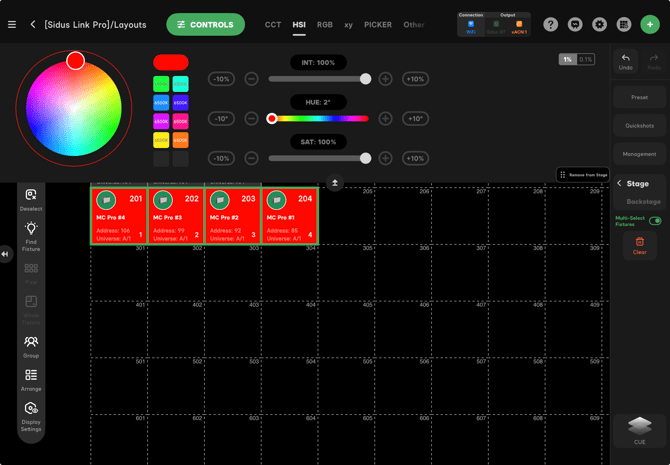
- Visual Confirmation: The layout provides instant feedback as you program. For example, if you set your MC Pros to 100% intensity in red using HSI, the fixture icons on your grid will update instantly to reflect that color and brightness.
This seamless connection between selection and adjustment allows you to build your looks and monitor your rig's status simultaneously, ensuring that what you see on your screen is exactly what is happening on set.
From Programming to Playback
Once you’ve dialed in your look—say, setting those MC Pros to 100% in red—it's easy to lock that in.
- Recording the Look: With your fixtures selected and dialed in right there on the grid, you can hit Record to save it as a cue.
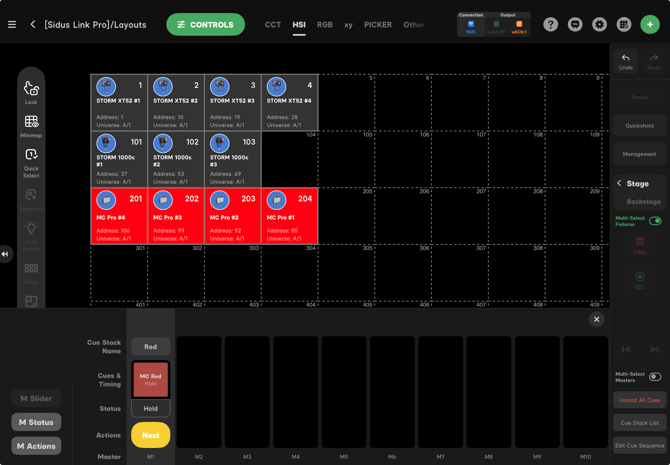
- The Playback Loop: Once that cue is saved and you play it back, the layout gives you instant confirmation. You’ll see the MC Pro icons stay red, and the status indicator will pop up to show that the cue is now running the show.
It’s a direct workflow: select the lights, adjust intensity, dial in your color, record the cue, and see the result instantly on the grid.
Sidebar Tool #1: Lock
The Lock function is designed to anchor your workspace view. When you are working in one specific part of the rig, you can lock your view in place to prevent the map from shifting.
- Stable Workspace: This keeps your screen static, ensuring that as you select and arrange your fixtures, you don't accidentally zoom away from the area you're focused on.
- Navigation Control: Even with the view locked, you can still use the Minimap to jump to a different section of the grid. Once you arrive at the new location, the view remains locked and stable in that new area until you toggle the Lock off.
Sidebar Tool #2: Minimap
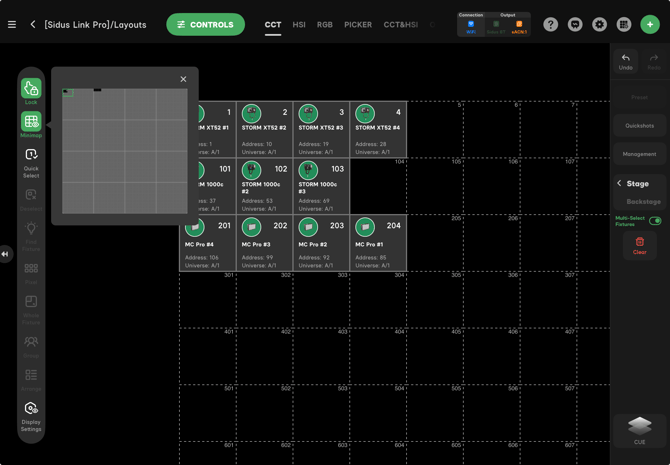
The Minimap is your navigation hub for the 100 x 100 spatial grid. It provides a high-level overview of your entire project, ensuring you never lose your way in a large-scale setup.
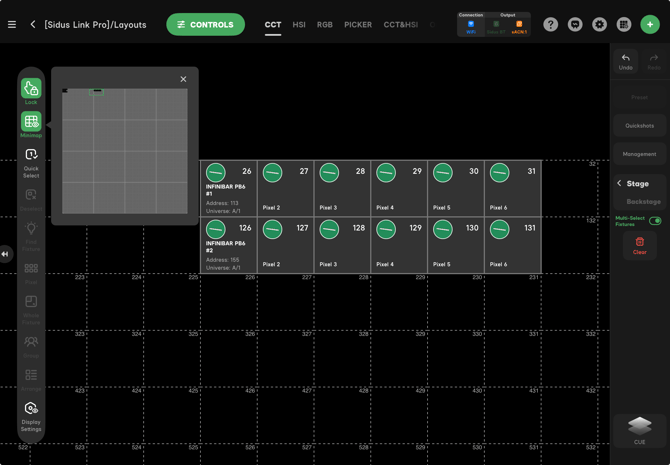
- Navigate with Precision: To move around the map, simply open the Minimap and drag your finger across the thumbnail to the section you want to view. In this instance, we have INFINIBARs in 6-pixel mode arranged in another area of the grid; the Minimap allows us to smoothly navigate over to them.
Persistent Navigation: The Minimap remains fully functional even when Lock is engaged. This allows you to maintain a stable, anchored view while still being able to shift your focus to different lighting clusters across the grid.
Sidebar Tool #3: Quick Select
Quick Select is your search engine for the layout. Instead of hunting for icons manually, it gives you several ways to grab exactly what you need based on how your show is patched.
- Numeric Grid Entry: Every cell in the grid has a dedicated index number. You can type a specific cell number (e.g., "301") to instantly center your view on that exact cell.
- Groups & Models: If you need to grab all your MC Pros or STORM XT52s at once, you can select by Model. You can also pull up custom Groups you’ve already created to navigate and select those groups instantly.
- Name Search: Use the Name function to search for specific labels you’ve given your gear.
Everything in Quick Select is built for efficiency—whether you're jumping to a single light or grabbing an entire model type, it keeps your programming workflow fast.
Sidebar Tool #4: Deselect
Pressing Deselect will unselect all fixture(s) currently selected.
- Selection Only: This is not a "clear" function. It will not clear out any of your programming information.
State Retention: Your programming stays active on the lights, and you are able to select the fixtures again.
Sidebar Tool #5: Find Fixture
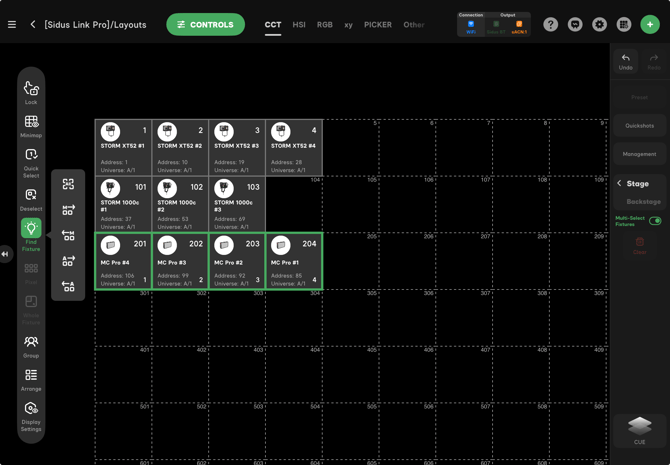
Find Fixture is a high-speed identification tool that sends a subtle, soft white highlight to your selected fixtures. This is used to physically locate lights on set and verify their position in your layout. Once your fixtures are selected and Find Fixture is engaged, you have five specialized control options:
- All: Sends the highlight effect to every fixture in your current selection simultaneously.
- Manual (Forward/Reverse): These two options allow you to step through your selection one light at a time. Tapping the forward button highlights the first light; tapping again moves the highlight to the second, and so on. You can use the reverse button to step back through the sequence.
-
Automatic (Forward/Reverse): These modes automatically cycle the highlight through your selected fixtures. Each light will subtly flash four times before the effect moves to the next fixture in the sequence. This can be run in either the forward or reverse order of your selection.
Sidebar Tools #6 & #7: Pixel vs. Whole Fixture
These toggles determine how you interact with multi-cell fixtures on the grid. They allow you to switch between controlling a fixture as a single unit or diving into its individual components.
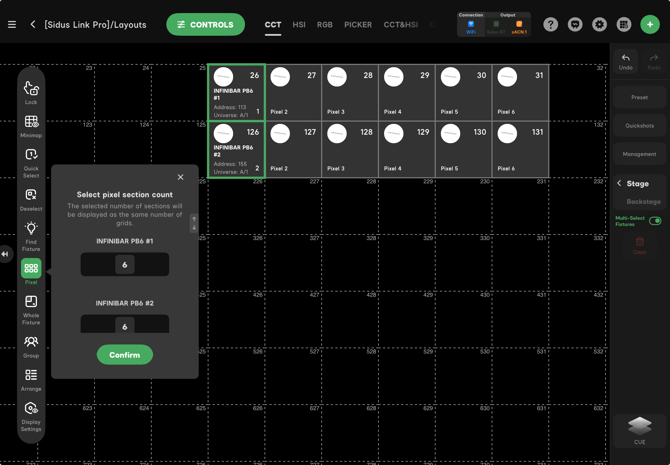
- Pixel Mode: When you have multi-cell fixtures added to your project—like INFINIBARs in Light Engine modes—selecting Pixel expands your control. The fixture icon on the grid will physically expand to show the 6 individual pixels, allowing you to select and program them independently for effects or specific pixel programming.
Whole Fixture Mode: Selecting Whole Fixture collapses the view back down. This treats the entire 6-pixel bar as a single fixture again. This is the fastest way to apply global changes—like a single CCT value or intensity level—to the entire unit at once without having to manage individual cells, saving grid space.
Sidebar Tool #8: Group
The Group tool is all about staying organized and moving fast. It lets you bundle multiple lights together so you can control them as one unit.
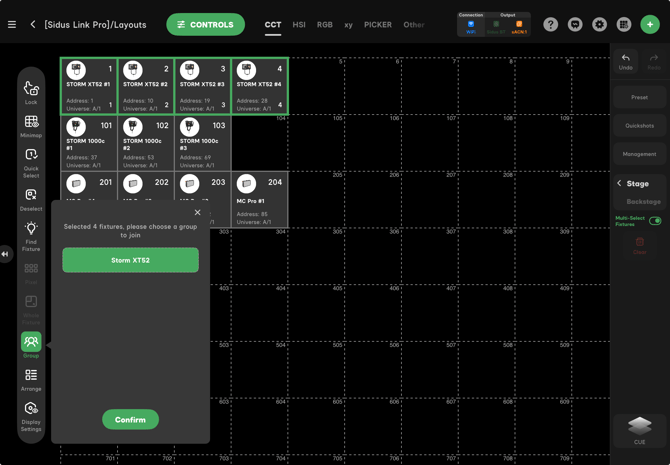
- Smarter Selection: Instead of tapping every individual light, you can build groups for sections of your rig. For example, you can select all your STORM XT52s and save them as a single group. Once they're grouped, you can grab every XT52 on the grid with one tap.
-
Integrated Navigation: Creating these groups directly feeds into the Quick Select tool. This allows you to efficiently navigate and jump across the 100 x 100 grid by calling up your pre-built groups, making it much faster to move between different sections of the rig during a session.
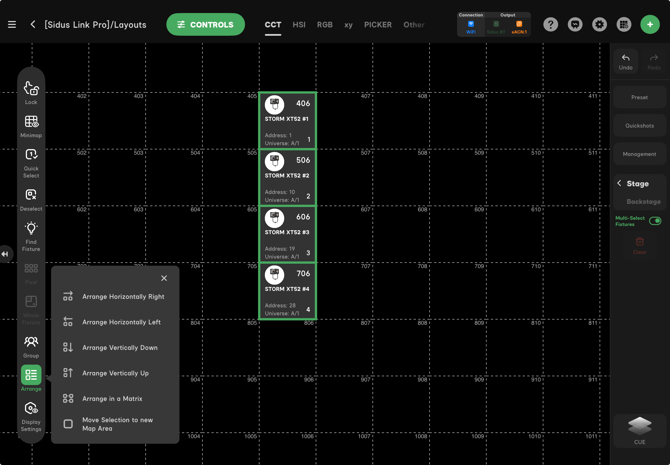
The Arrange tool is what you use to clean up the workspace. Once you’ve selected a set of lights, Arrange gives you six specific ways to snap them into a clean layout:
- Arrange Horizontally Right: Snaps your selected fixtures into a horizontal line extending to the right.
- Arrange Horizontally Left: Snaps the selection into a horizontal line extending to the left.
- Arrange Vertically Down: Aligns the fixtures in a vertical column moving downward.
- Arrange Vertically Up: Aligns the fixtures in a vertical column moving upward.
- Arrange in a Matrix: This tool allows you to define the number of rows and columns yourself to build custom blocks of fixtures. It is especially powerful for complex pixel arrangement, giving you the control to map out intricate pixel walls or multi-cell arrays quickly and accurately.
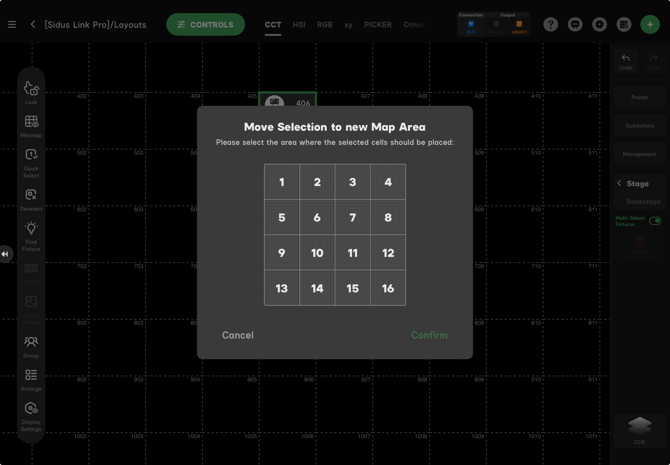
- Move Selection to New Map Area: Allows you to take a whole cluster of lights and relocate them to a different section of the 100 x 100 grid in one move.
Sidebar Tool #10: Display Settings
The Display Settings menu is where you go to declutter your layout and control exactly what information is visible on your fixture icons. It’s all about tailoring the view to your specific workflow.
- Toggle Information: You can choose to show or hide labels for the Fixture Name, Sidus BT (Bluetooth) Label, and Universe/Address.
- Cleaner Workspace: For most users, once the rig is patched and verified, having the Universe and Address visible is unnecessary. Deselecting this option clears up significant visual space on the grid, allowing you to focus on the fixture IDs and their positions.
-
Grid Controls: You also have the option to turn off the Grid (Borders) entirely. This removes the dashed boundary lines from the 100 x 100 grid, giving you a completely clean, "infinite" black workspace for your layout.
The Future of Layouts
The Layouts feature is a brand-new addition to [Sidus Link Pro], and this is only the beginning. As the platform evolves, you can expect even more powerful tools and updates to roll out, further expanding what’s possible on the grid.
Make sure to keep your [Sidus Link Pro] app up to date so you’re ready to take advantage of the latest features and workflow enhancements as they arrive. The future of lighting control is here—let's build something great with it.