
This article is a tour of the Sidus Link Pro interface you see when you open a Project, with a short description of what each part does and links to the detailed articles. The layout is the same on iPad and Mac.
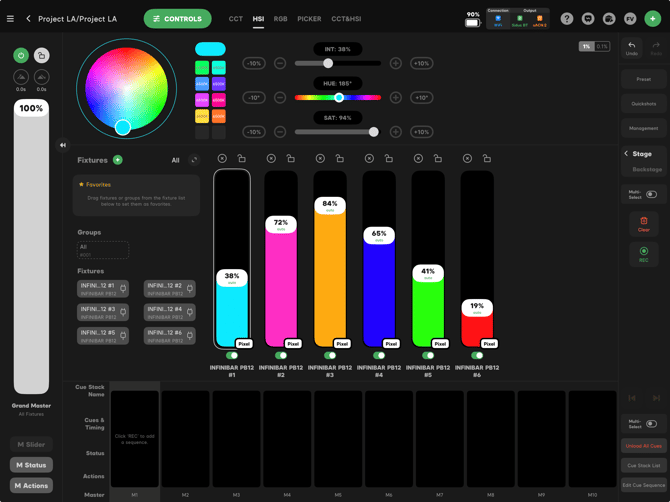
Main Menu
Tap the list icon in the top left of the Folders page to open the main menu. From here you can jump to Projects, the Library, Diagram Master, the Illumination Handbook, Settings, and Support. See App Settings and Library and Cloud Services.
Top Bar
-
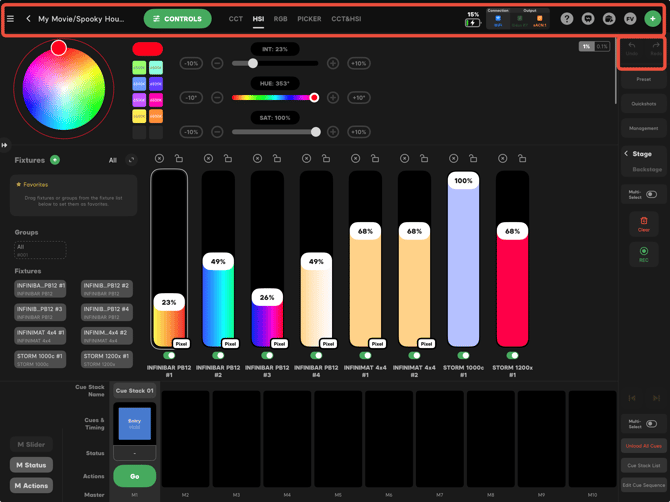
Back arrow - Close the Project and return to its Folder.
-
Control - The green button that opens the Parameter Controls for the selected fixtures. See Parameter Controls below.
-
Undo / Redo - Step back or forward through your recent changes on the stage.
-
Green + - Add New Fixtures (manual patching, Auto-Patching and Sidus BT fixtures), Add Fixtures Group and Configure Network Transceiver.
-
View Selection - Switch between Fixture View, Channel View, Sidus BT View, Layout View and 3D Visualizer.
-
Tools - Opens Action Panel, the Illumination Handbook and Create Local Backup (saves a copy of the show file without closing it).
-
DMX Output Window - Shows the current DMX value on every address of every universe. See DMX Output Window.
-
DMX Output Monitor - A graph of individual DMX channels over time. This is useful when troubleshooting a single channel.
-
? - Shows or hides help bubbles that label each control on the screen.
-
Connection Management - Network status, DMX output and universe settings, Network Transceivers (Sidus One and Sidus Four), Sidus BT, and CRMX BT. See Configuring DMX Output.
-
Gear - Project settings, including the DMX Output toggle. On the Free Plan, or when a trial ends, the DMX Output toggle is locked. See Managing Your Subscription.
-
Battery level - Your iPad or Mac battery level. It updates every few minutes to save power.
Parameter Controls
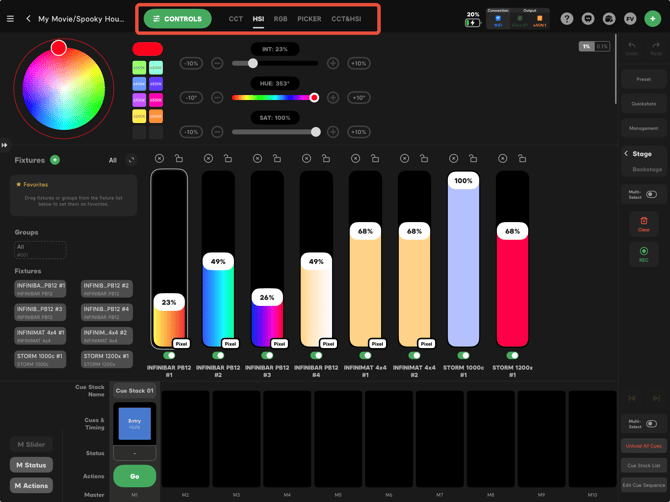
Tap the green CONTROLS button to choose how you adjust the selected fixtures. The modes you see depend on the fixture and the DMX profile it was patched with.
Color Control Modes
-
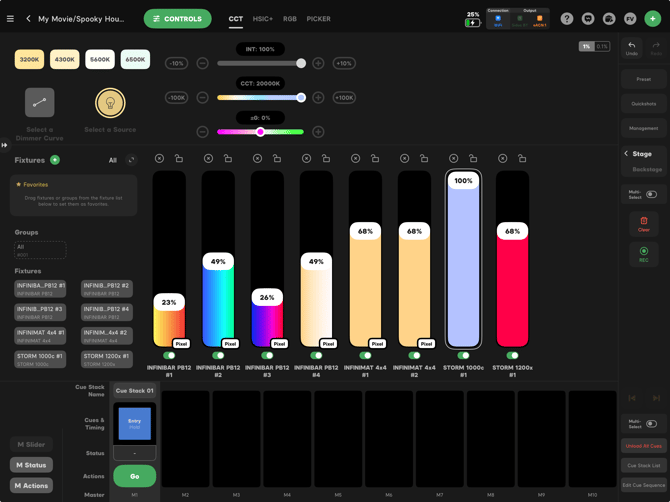
CCT - Correlated Color Temperature, plus ±G white point adjustment if the fixture supports it.
-
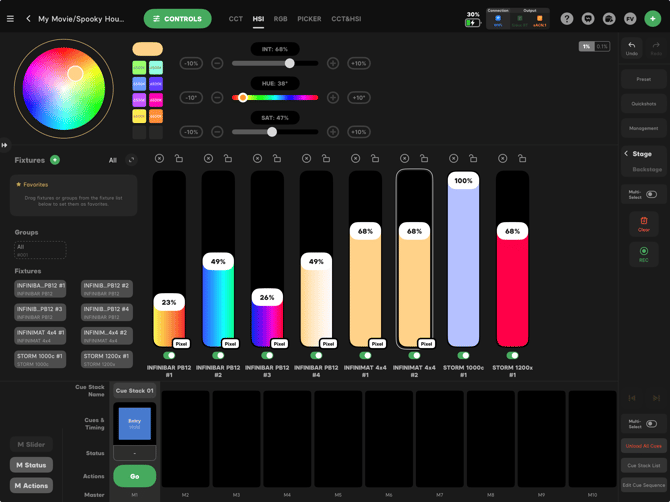
HSI - Hue, Saturation and Intensity
-
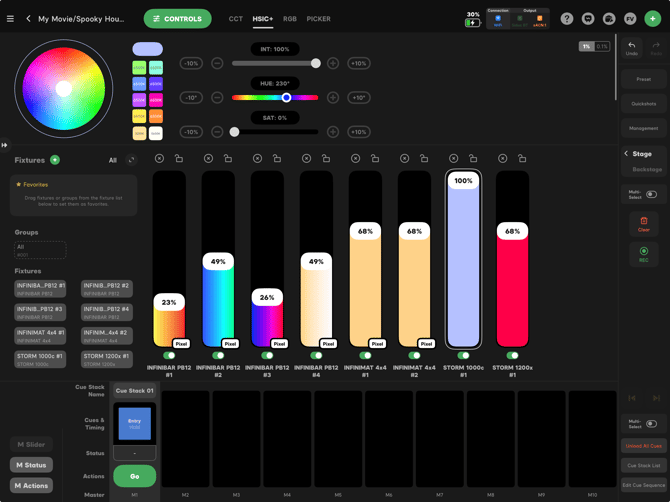
HSIC+ - Hue, Saturation, Intensity, plus CCT white point and ±G.
-
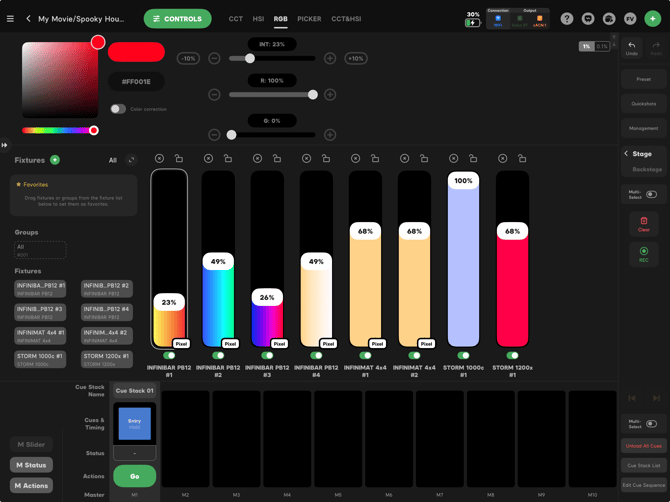
RGB - Red, Green and Blue channel controls with Hex color input.
-
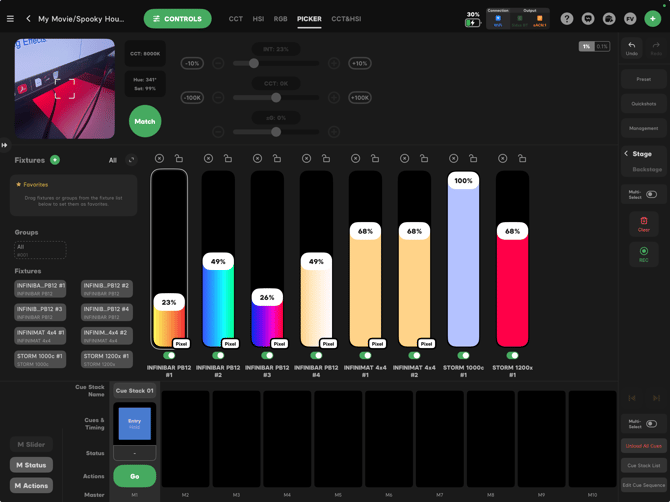
PICKER - Uses the camera to sample a real-world color and match it on the fixture.
-
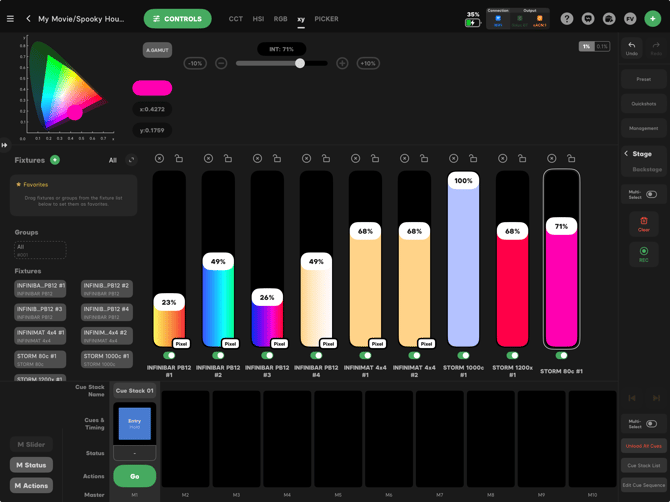
xy - CIE 1931 xy coordinates, with gamut options for A.GAMUT, DCI-P3 and BT.709 (Rec. 709). xy is useful for matching hue precisely across fixtures from different manufacturers.
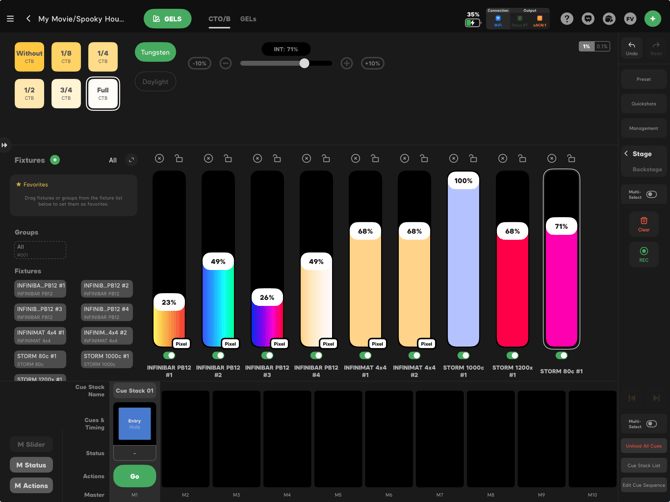
GEL
Imitates CTO/CTB correction and the Rosco and Lee gel libraries over a Tungsten or Daylight source. See Using Gel Mode.
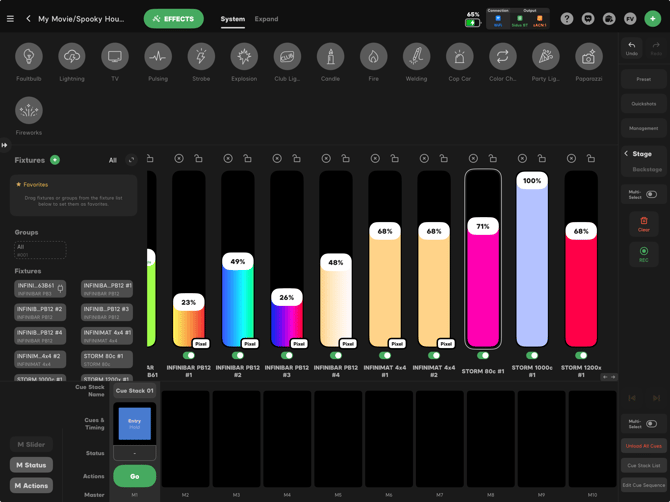
EFFECTS
Different EFFECTS modes are available for DMX vs. Sidus BT controlled fixtures.
The available EFFECTS modes for DMX controlled fixtures include:
-
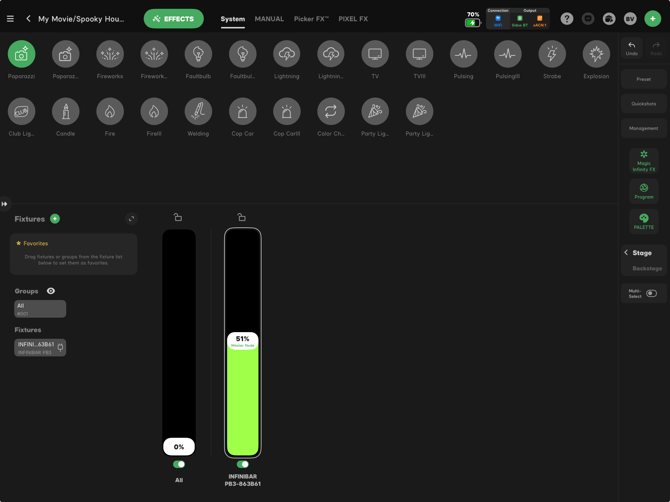
System - The basic suite of built-in effects
-
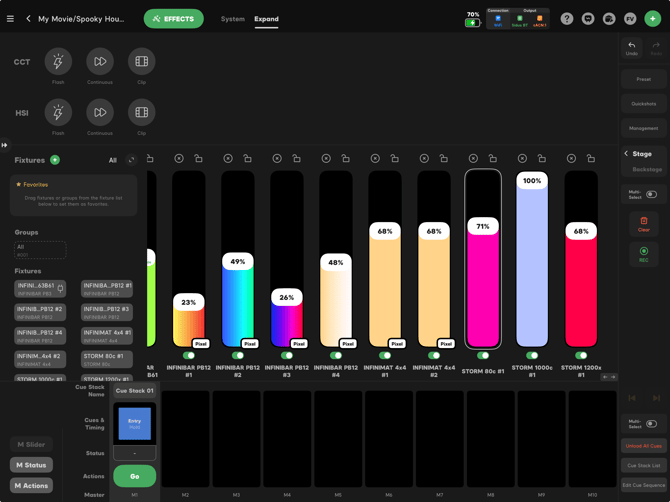
Expand - CCT & HSI effects that allow for Point, Range, Flash, Continuous and Clip customization
The available EFFECTS modes for Sidus BT controlled fixtures include:
-
System - The basic suite of built-in effects
-
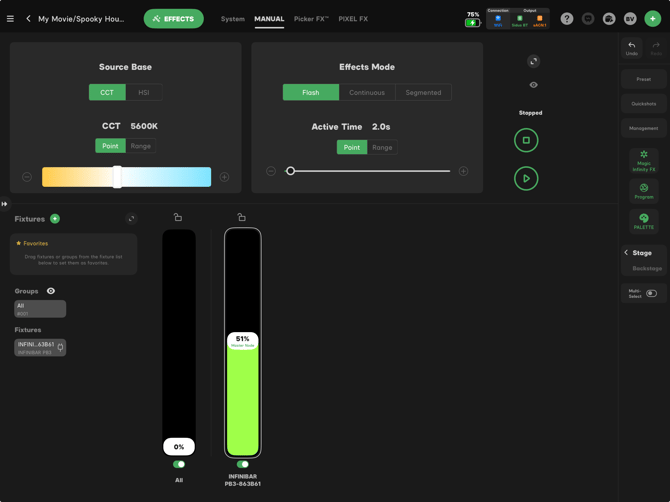
MANUAL - Source Base effects that allow for CCT, HSI, Point, Range, Flash, Continuous & Segmented FX customization
-
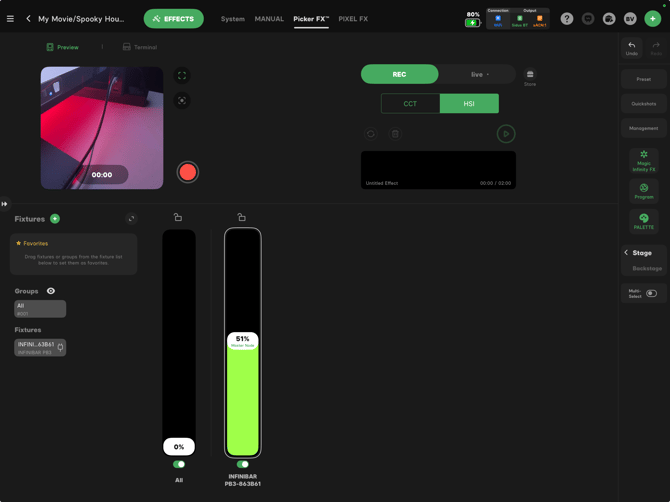
Picker FX - Uses the camera to sample a real-world effects and match them on the fixture.
-
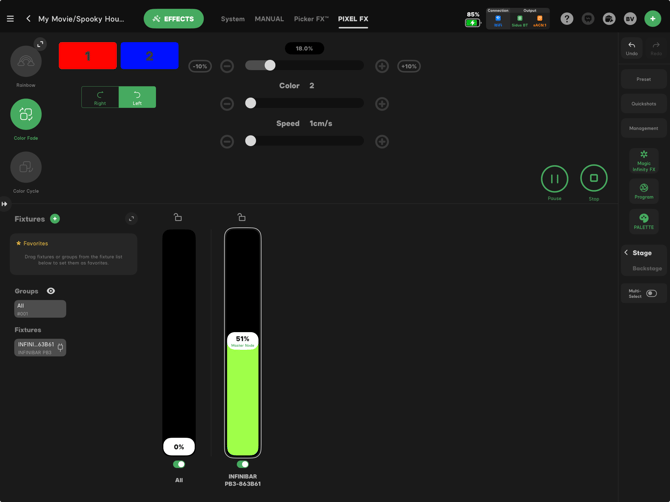
PIXEL FX - Offers a range of customizable pixel effects for pixel capable fixtures
For more information on using effects, see Using Effects.
Other
Per-fixture extras such as Strobe, Control and Fan on supported lights. See Advanced DMX Parameters.
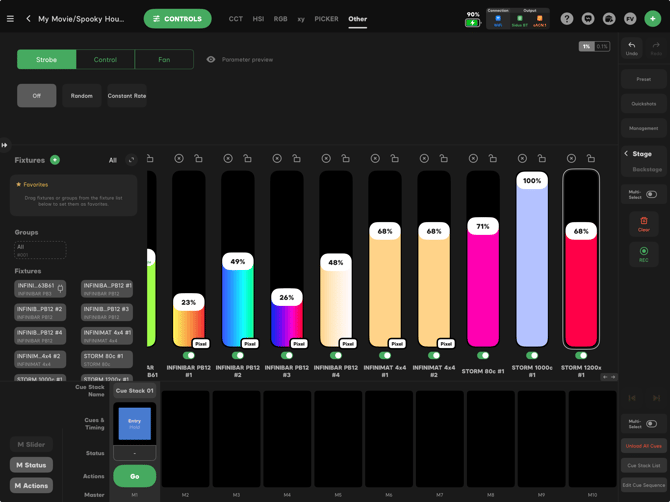
Tap any slider value, including Intensity, CCT, and the Grand Master, to type an exact number. Intensity adjusts in 0.1% steps.
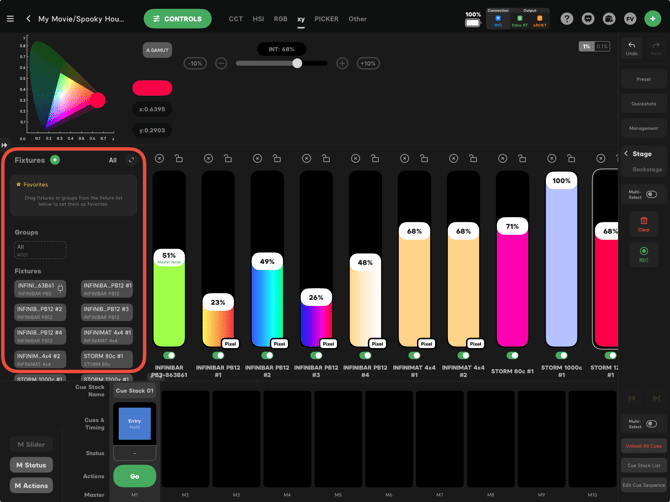
Fixtures
The Fixtures holds every fixture and group in the Project. Tap a fixture or group to bring it onto the Stage, then tap it again to remove it.
-
+ - Visible when the list is compact. Same as the green + in the top bar: Add New Fixtures and Add Fixtures Group.
-
All - Brings every fixture affected by a playing Cue onto the Stage with its current values, and selects all groups and fixtures in the list.
-
Expand / Compact - Switches the list between a compact strip and a larger panel.
-
Favorites - Press and hold a fixture or group and drag it into Favorites. Drag it out to remove it.
-
Groups - Saved groups of fixtures.
-
Fixtures - Every fixture patched over DMX or connected over Sidus BT. Battery level shows for Sidus BT and auto-patched fixtures.
Stage
The Stage holds the fixtures you are adjusting for the current look. There are multiple views that you can use on Stage, including:
-
Fixture View - Each fixture is a single slider. Each slider has an On/Off switch, so you can turn a light off and back on without losing its intensity.
-
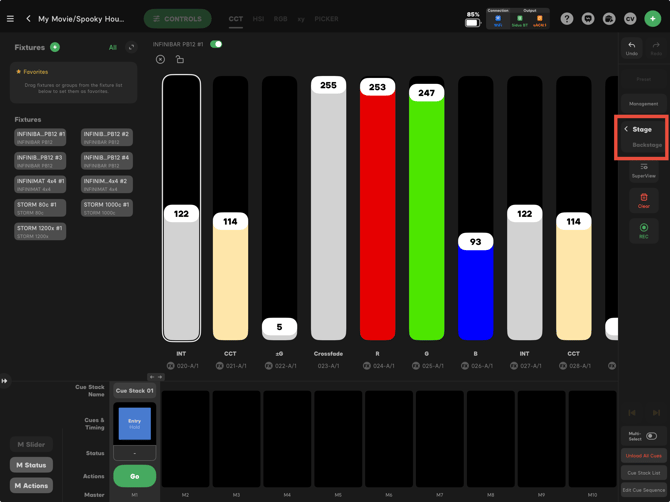
Channel View - Each DMX channel of each fixture is its own slider.
- Sidus BT View - Each fixture is a single slider. Only Sidus BT fixtures appear as well as Sidus BT specific control options, such as Magic Infinity FX, Program and PALETTE.
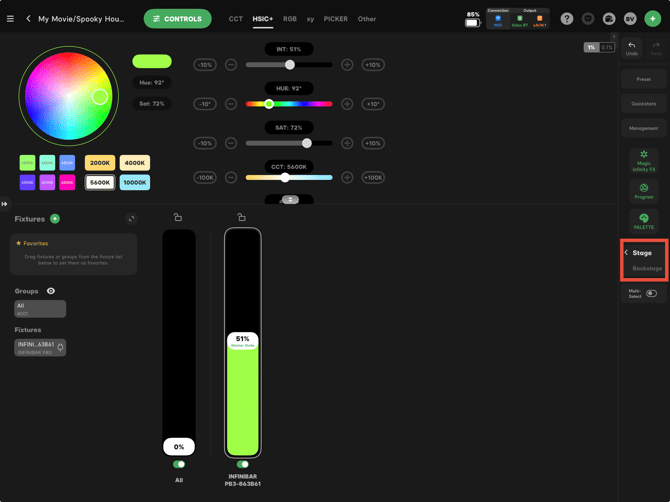
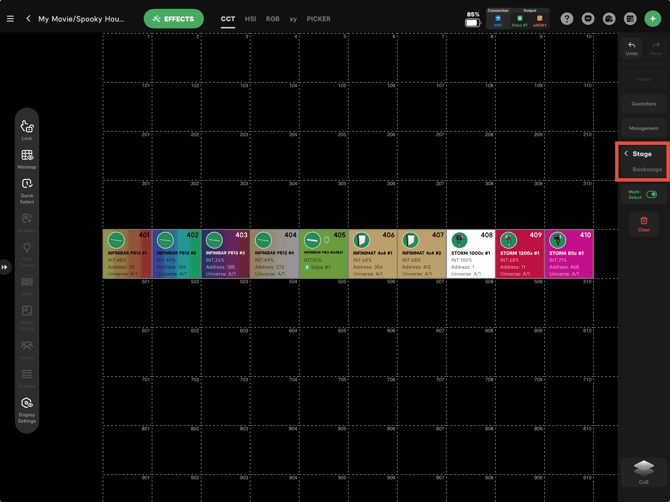
- Layout View - Each fixture is displayed as a tile on the grid, which allows you to arrange the tiles to match positions that the corresponding fixtures are in on set.
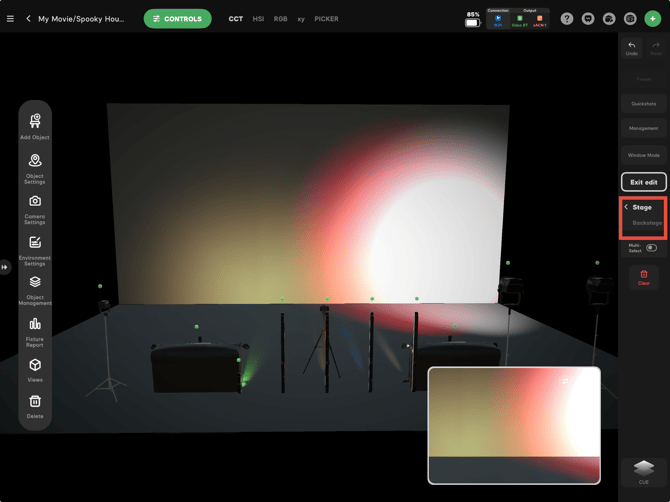
- 3D Visualizer - Each fixture appears as a 3D object in a 3D representation of your set.
-
To build a group on the fly, press and hold a fixture slider and drag it onto another fixture's slider.
-
Fixtures on the Stage take priority over Cues. If a Cue cannot take control of a fixture because it is on the Stage, Sidus Link Pro shows a notification. Tap Clear to release the Stage.
See Stage and Backstage.
Right Bar
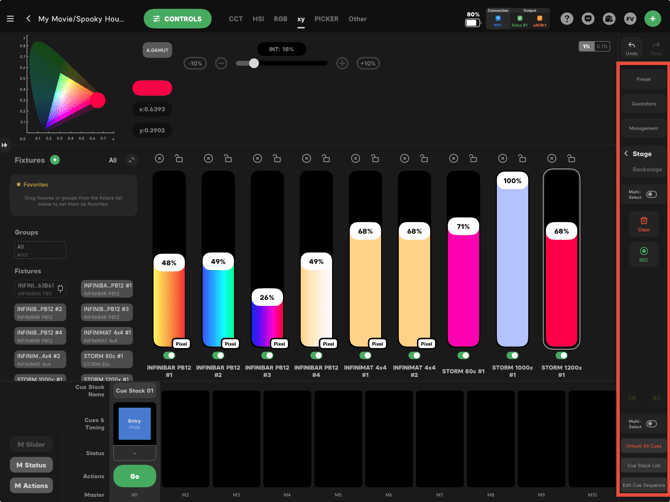
The Right Bar holds many useful tools, including:
-
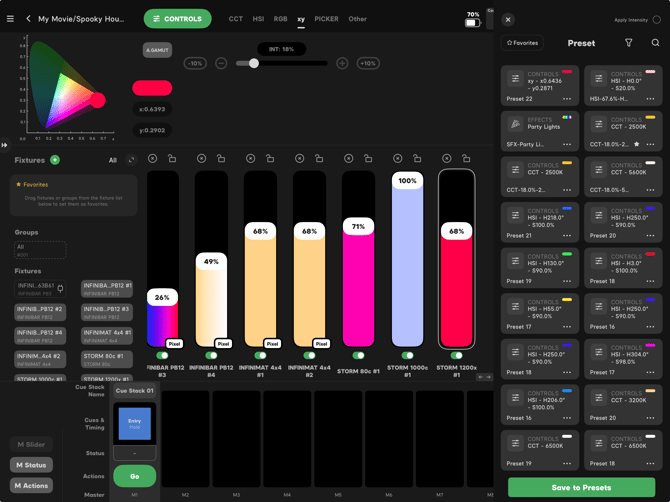
Preset - Saved parameter presets you can apply to the selected fixtures.
-
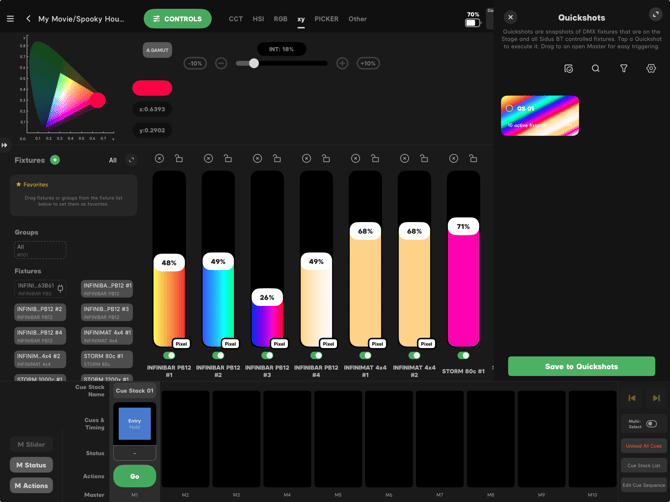
Quickshots - Quickshots are snapshots of DMX fixtures that are on the Stage and all Sidus BT controlled fixtures. Tap a Quickshot to execute it. Drag to an open Master for easy triggering. See Quickshots.
-
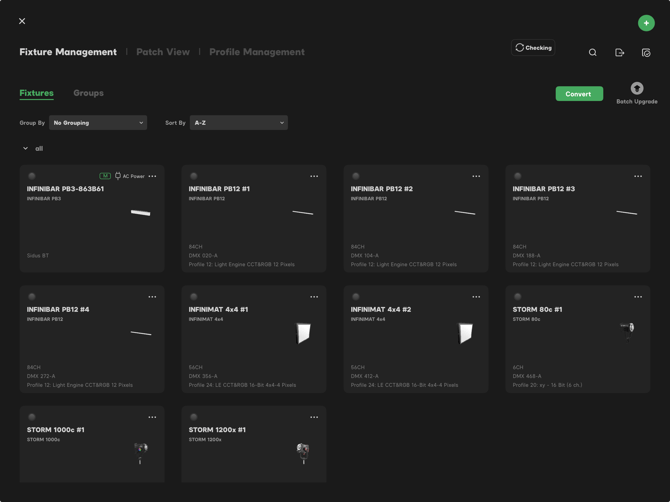
Management - Fixture Management, Patch View and Profile Management. Fixture tiles show each fixture's profile number, profile name, universe and address.
-
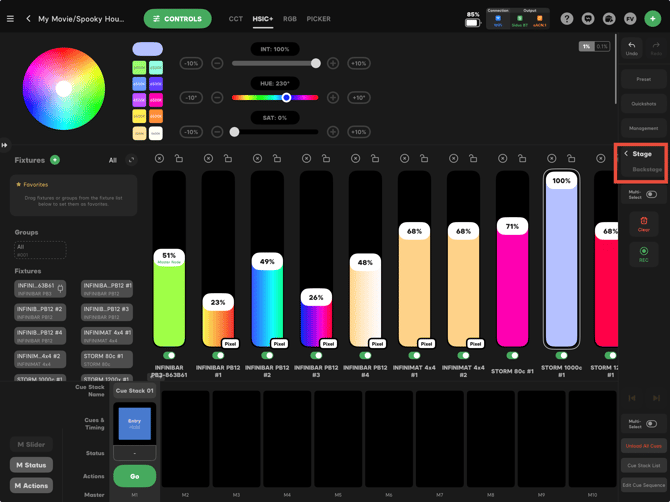
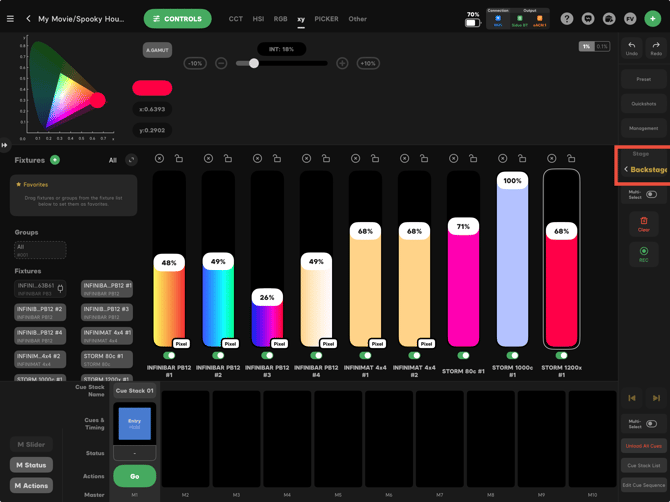
Stage / Backstage - Switch between Stage and Backstage. In Stage, changes made to fixture parameters are immediately implemented. In Backstage, changes are not implemented on the fixtures until you return to Stage. The Backstage label pulses yellow as a reminder.
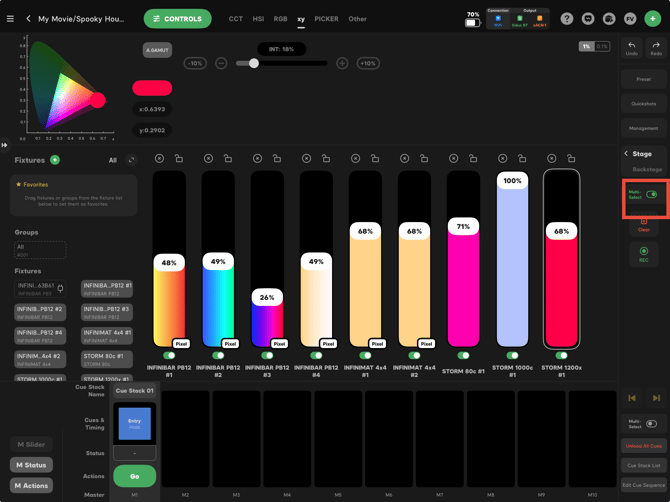
- Multi-Select for Fixtures - Select more than one fixture so that you can change settings on both fixtures at once.
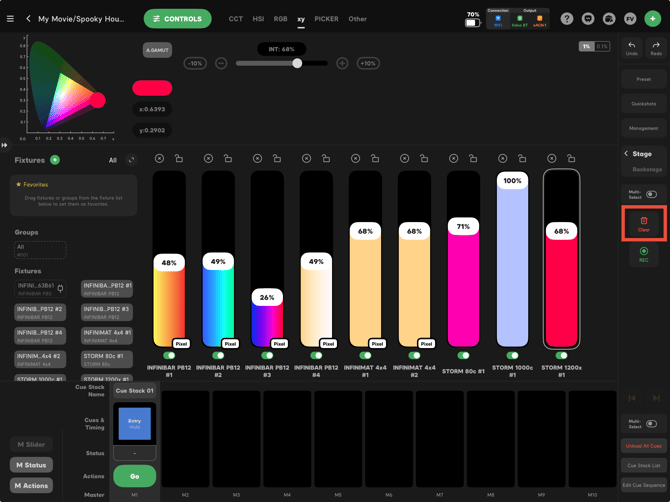
- Clear - Clears the Stage. Clear does not unload playing Cues. Clear asks for confirmation; choose Don't remind me again to skip the extra step in the future.
-
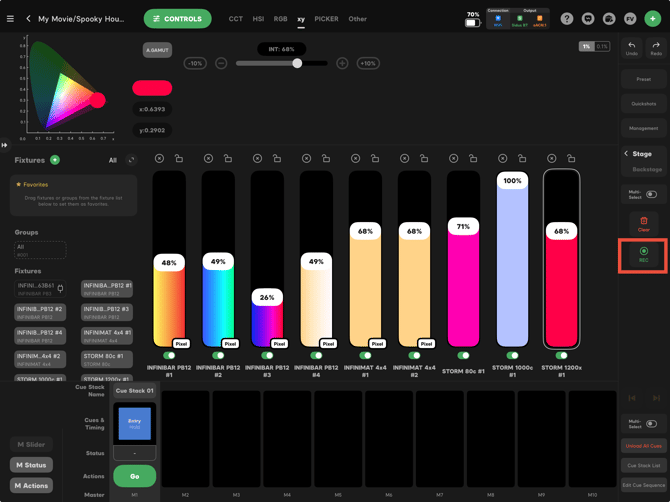
REC - Record a new Cue. See Recording and Managing Cues.
-
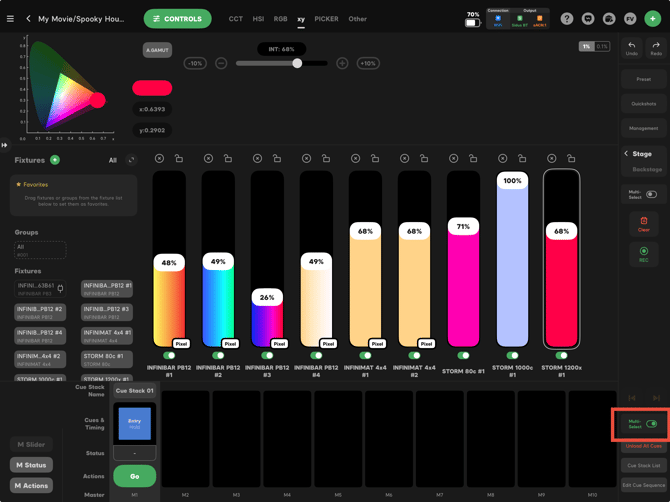
Multi-Select for Cues - Select more than one Cue Master so you can fire or unload several Cues at once.
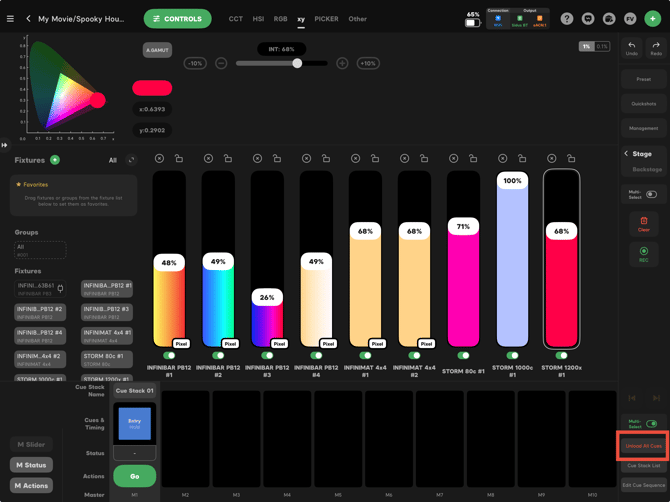
- Unload All Cues - Unloads all running Cues.
-
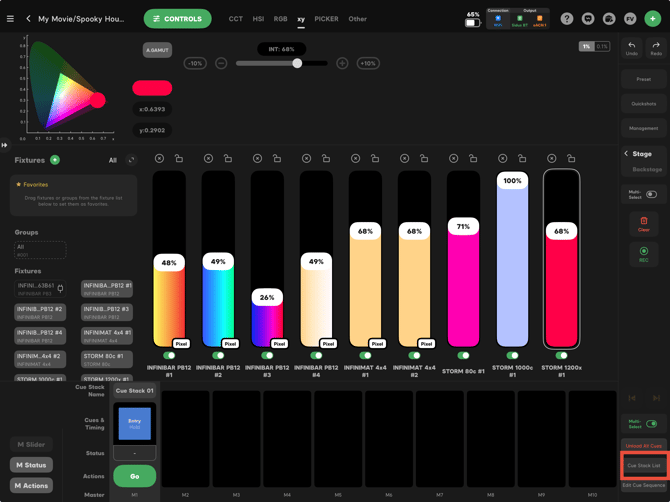
Cue Stack List - Long press to edit a Cue. Drag the Cue to a Master or drag it back from the Master to load or remove the sequence.
-
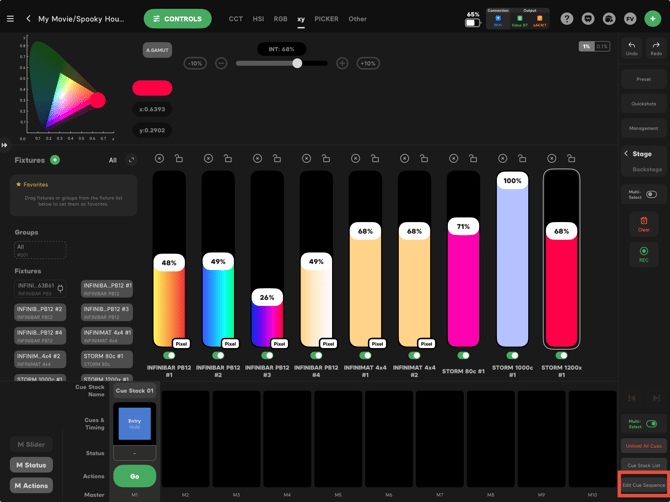
Edit Cue Sequence - Edit fade and wait times, Cue Actions, End of Cue Stack Action and HTP / LTP priority. See Cue Stacks.
Left Bar
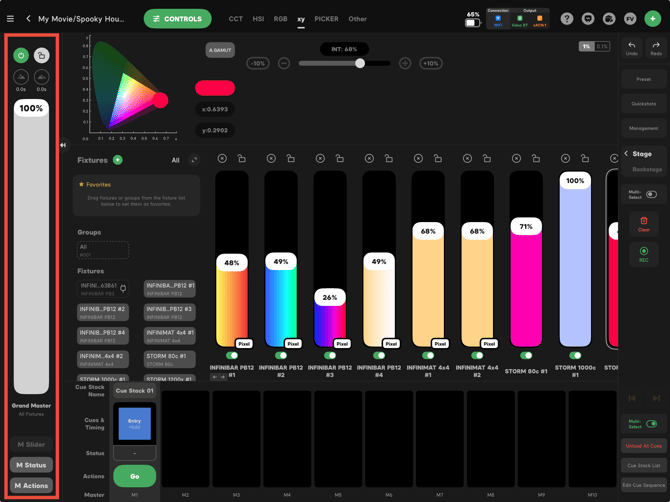
The Left Bar holds many useful tools, including:
-
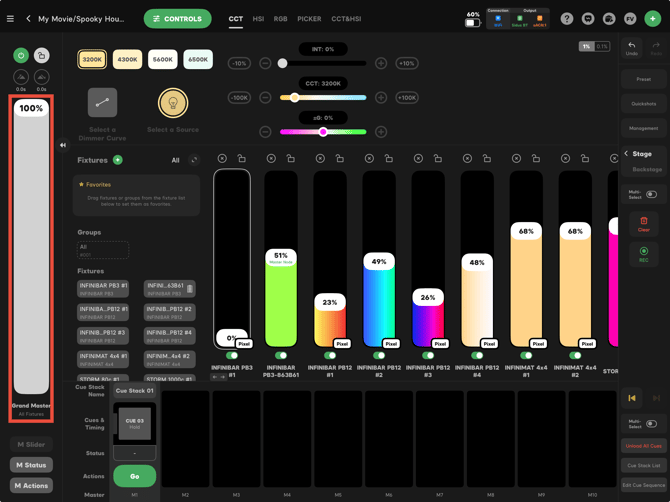
Grand Master - Scales the intensity of every fixture in the Project, both Sidus BT and DMX, without changing any Cue or Stage value. If the Grand Master is hidden and set to 0%, a notice appears on screen.
-
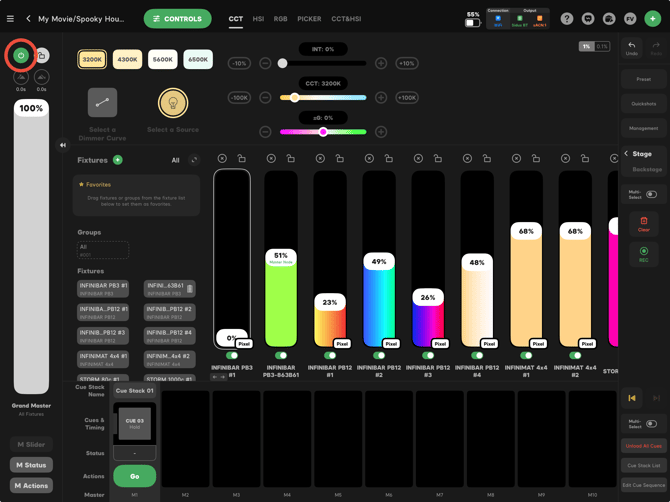
Power All Fixtures On/Off - Fades every fixture on or off using the Fade-in and Fade-out times set below it.
-
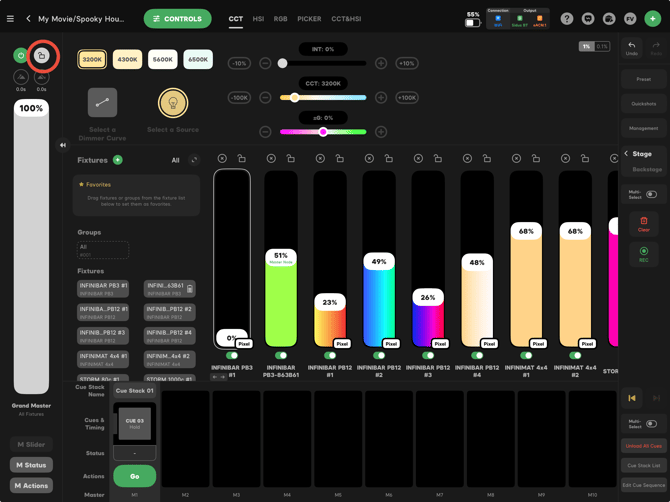
Lock - Locks the Grand Master and the Power button so they cannot be changed by accident.
-
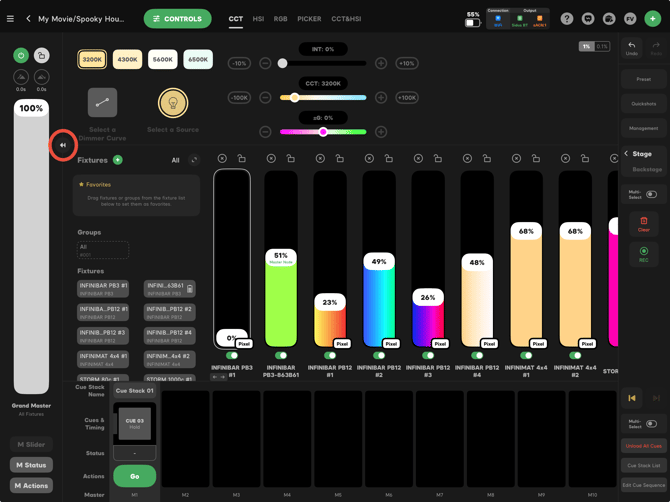
Grand Master drawer arrow - Shows or hides the Grand Master to give the Stage more room.
-
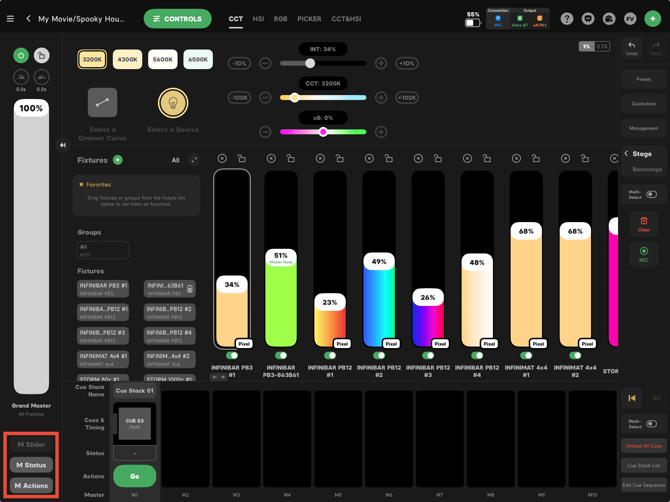
M Slider / M Status / M Actions - Choose what the 10 Cue Masters show: Intensity sliders, the Cues & Timing table or the GO and action buttons. One of the three is always on. See Using Masters.
Keyboard Shortcuts
Many operations have a keyboard shortcut on Mac and on iPad with a keyboard. For example, Q / W / E / R / T switch views and the Spacebar fires the next Cue. See Keyboard Shortcuts.
Need Help?
See Getting Help & Support for the fastest way to reach the Aputure team.