
With the release of version 2.4 and Mac OS Desktop support, Sidus Link Pro ships with 100+ keyboard shortcuts. The detailed work (building a complex set in 3D Visualizer, swapping between views, firing cues on tempo) is faster when your hands stay on the keys. And these shortcuts are not Mac-only. They work on iPad too. Pair any Bluetooth keyboard or plug in a Smart Keyboard and the same keys jump between views, record cues, and label fixtures.
Download the Keyboard Shortcut PDF here.
Switching Views
The five main views in Sidus Link Pro map to a single row of keys. Tap Q and you're in Fixture View. Tap W for Channel View. It's that simple. No reaching for buttons. No hunting through menus. Just fingers on keys.
- Q → Fixture View
- W → Channel View
- E → Sidus Bluetooth View
- R → Layout View
- T → 3D Visualizer
The QWERT row, the same keys programmers have used on consoles for years. Build muscle memory once and you're done. Your hands never leave the keyboard.
Execution: Firing Cues and Recording
Space bar fires the next cue. That's the main one. The most important key. A physical GO button right there on the keyboard.
Beyond that, the shortcuts you use every day:
- Space → Fire the next cue
- Cmd-R → Record a cue
- Cmd-K → Grab a Quickshot
- Cmd-Opt-Shift-B → Blackout the stage
Notice the Blackout shortcut: it's a chord, not a single key. Too destructive to fire by accident. Intentional protection.
Shortcuts on iPad
Every keyboard shortcut works on iPad the same way it works on Mac. Pair any Bluetooth keyboard through iPad Settings, or plug in a Smart Keyboard. Then fire cues with the spacebar. On your iPad. On set. Programmers from console backgrounds will recognize this immediately: it's the same muscle memory, the same workflow, but now on the device in your hand.
Use a Stream Deck with Sidus Link Pro
Because every Sidus Link Pro shortcut is just a keystroke, any Elgato Stream Deck connected to your Mac can fire any shortcut from a labeled, illuminated button. We have a pre-built profile you can download and import in three clicks: shortcuts are already mapped, icons are color-coded by category, and the layout is laid out for show-running, not figure-it-out-yourself.
Download the Sidus Link Pro Stream Deck Pack (.zip)
Includes three .streamDeckProfile files (Standard 15-key, XL 32-key, + XL 36-key plus 4 dials, Plus 8-key plus 4 dials), 49 custom icons, layout preview images, the printable Keyboard Shortcut PDF, and a manual setup README.
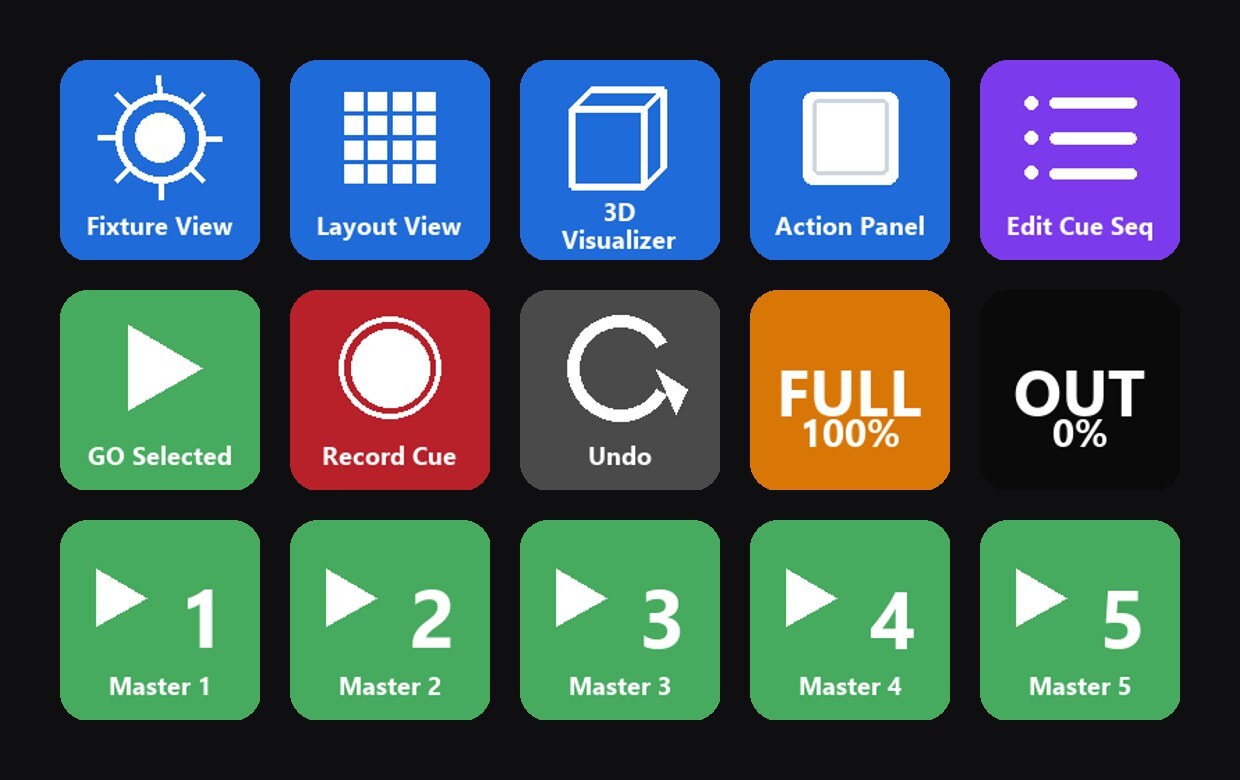
What you get on Stream Deck Standard:
- Row 1 (blue): Fixture View, Layout View, 3D Visualizer, Action Panel, Edit Cue Sequence
- Row 2: GO Selected, Record Cue, Undo, FULL 100%, OUT 0%
- Row 3 (green): GO Master 1 through Master 5
The XL profile adds Channel View, Bluetooth View and Pixel Map to the view row, Masters M6 through M8, a second execution row (Edit Active Cue, Record Quickshot, Find Fixture, Identify, Redo), and a safety row (Lock View, Clear Stage, Select All, Deselect All, BLACKOUT). The + XL profile fills all 36 keys: it keeps every XL key in the same column and adds a ninth column with Groups Tab, BACK Selected Master, Master 9 and Unload All Cues. BLACKOUT stays in the bottom-right corner. Four of its six dials come preconfigured: Intensity Coarse and Parameter Coarse move in 10% steps, Intensity Fine and Parameter Fine follow the active increment, and pressing any dial toggles between 1% and 0.1% steps. The Plus profile maps its eight keys and carries the same four dials, which is all four the Plus has. Each dial is named on the touch strip: Intensity Coarse, Intensity Fine, Parameter Coarse and Parameter Fine. The icon set also includes eight coloured play buttons (blue, cyan, gold, yellow, lime, red, magenta, orange) for colour coding your GO keys, one per Cue Master if you like, plus a Master 10 icon matching Masters 1 to 9.
For full import instructions, the manual fallback, and the printable shortcut sheet, see Sidus Link Pro Stream Deck Profile.