
Elgato Stream Deck hardware turns your Mac keyboard shortcuts into oversized, labeled, illuminated buttons. With Sidus Link Pro V2.4 shipping 118 keyboard shortcuts, the Stream Deck becomes a powerful hardware control surface for show running: eyes on the talent, fingers on the trigger.
This article walks through importing the pre-built Sidus Link Pro Stream Deck profile onto your Mac.
What you need
- A Mac running macOS with the Stream Deck desktop app installed (download from Elgato).
- An Elgato Stream Deck (Standard 15-key, XL 32-key, + XL 36-key, or Plus 8-key; the + XL and Plus both ship with 4 preconfigured dials).
- Sidus Link Pro V2.4 or later on the same Mac (Mac OS Desktop).
Download the profile pack
Download SidusLinkPro - StreamDeck Shortcuts V1.7.zip
Contains four .streamDeckProfile files (one per Stream Deck model), 49 custom icons, layout preview images, a printable Keyboard Shortcuts PDF, and a manual setup README.
You can also download the printable Keyboard Shortcuts PDF on its own.
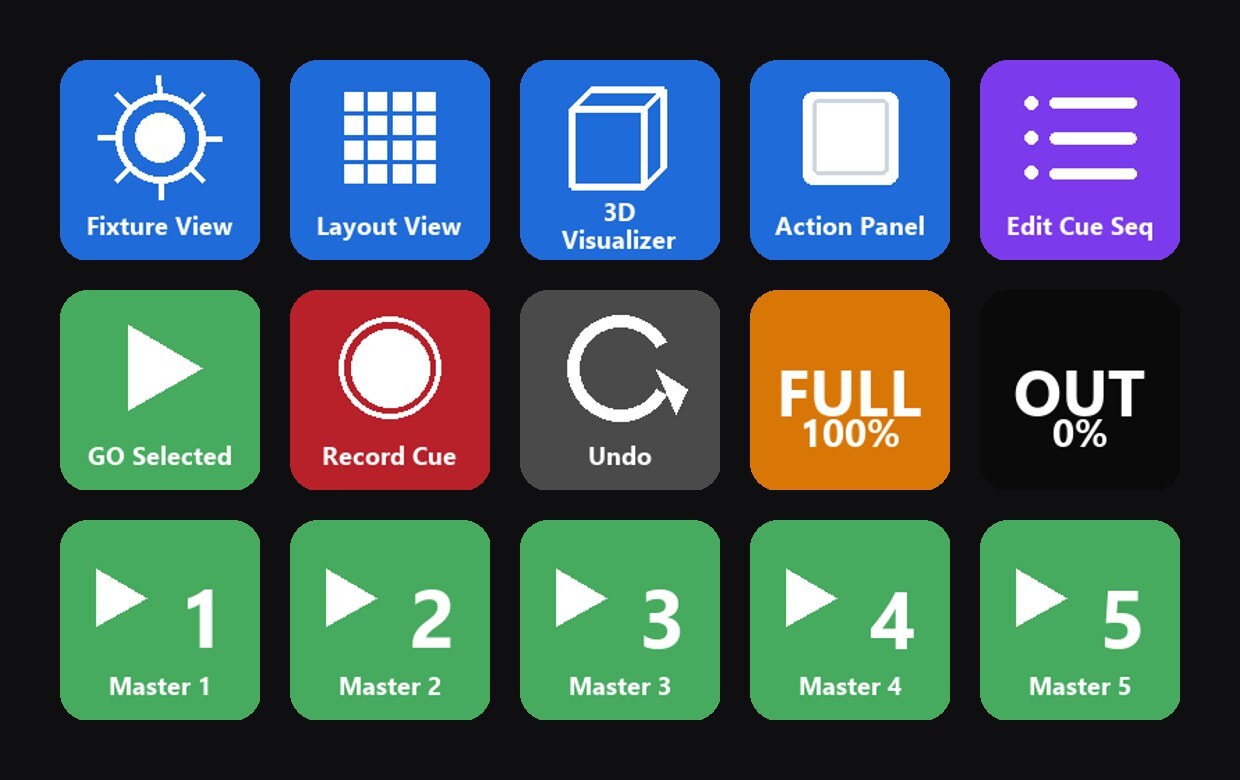
- Row 1 (Views, blue): Fixture View, Layout View, 3D Visualizer, Action Panel, Edit Cue Sequence.
- Row 2 (Execution): GO Selected (green), Record Cue (red), Undo (gray), FULL 100% (orange), OUT 0% (black).
- Row 3 (Cue Masters, green): Master 1 through Master 5.
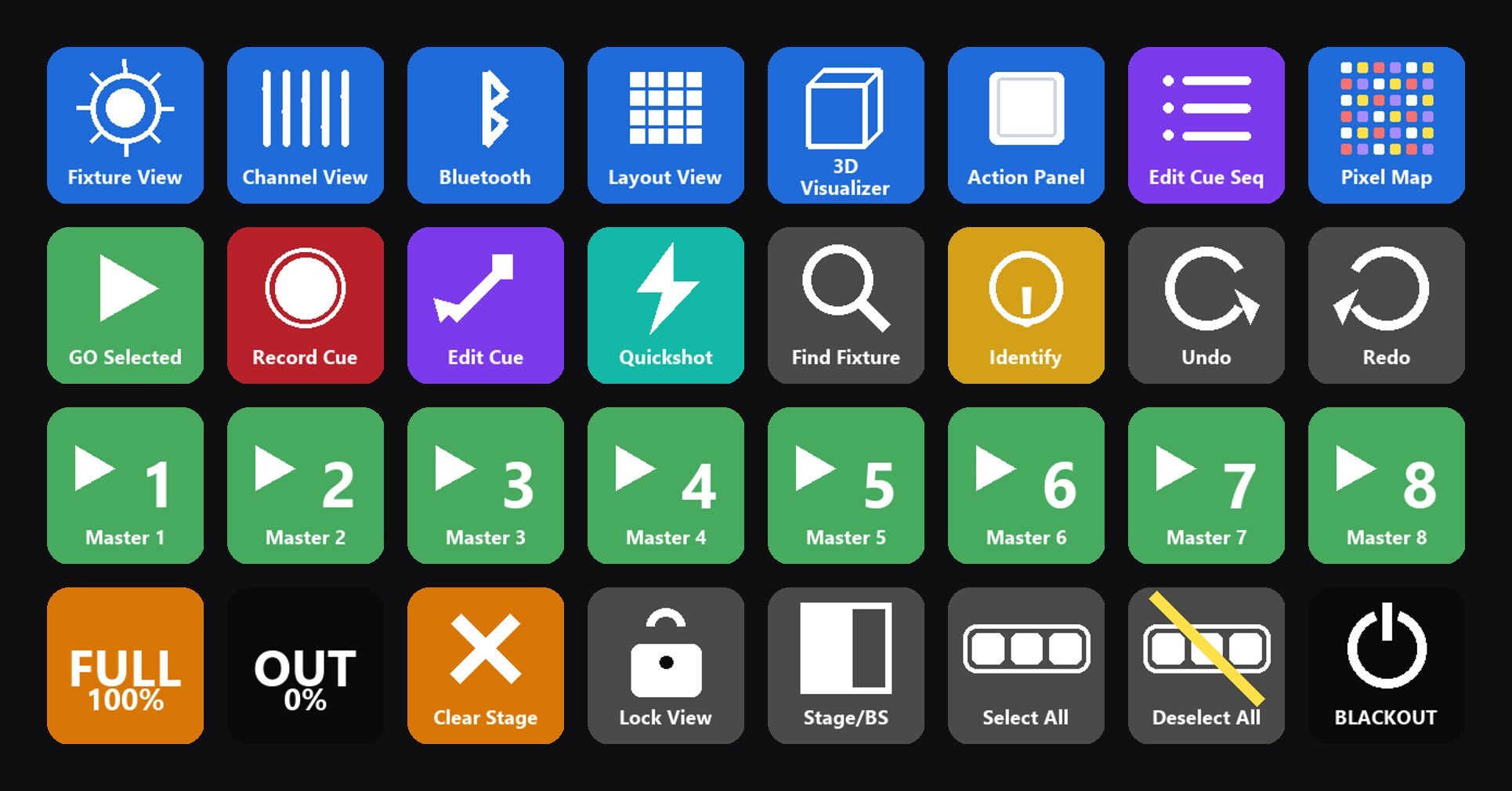
- XL, 32 keys: adds Channel View, Bluetooth View and Pixel Map to the view row, a full execution row (Record Cue, Edit Active Cue, Record Quickshot, Find Fixture, Identify, Undo, Redo), Masters 1 through 8, and a safety row (FULL 100%, OUT 0%, Clear Stage, Lock View, Stage/Backstage, Select All, Deselect All, BLACKOUT).
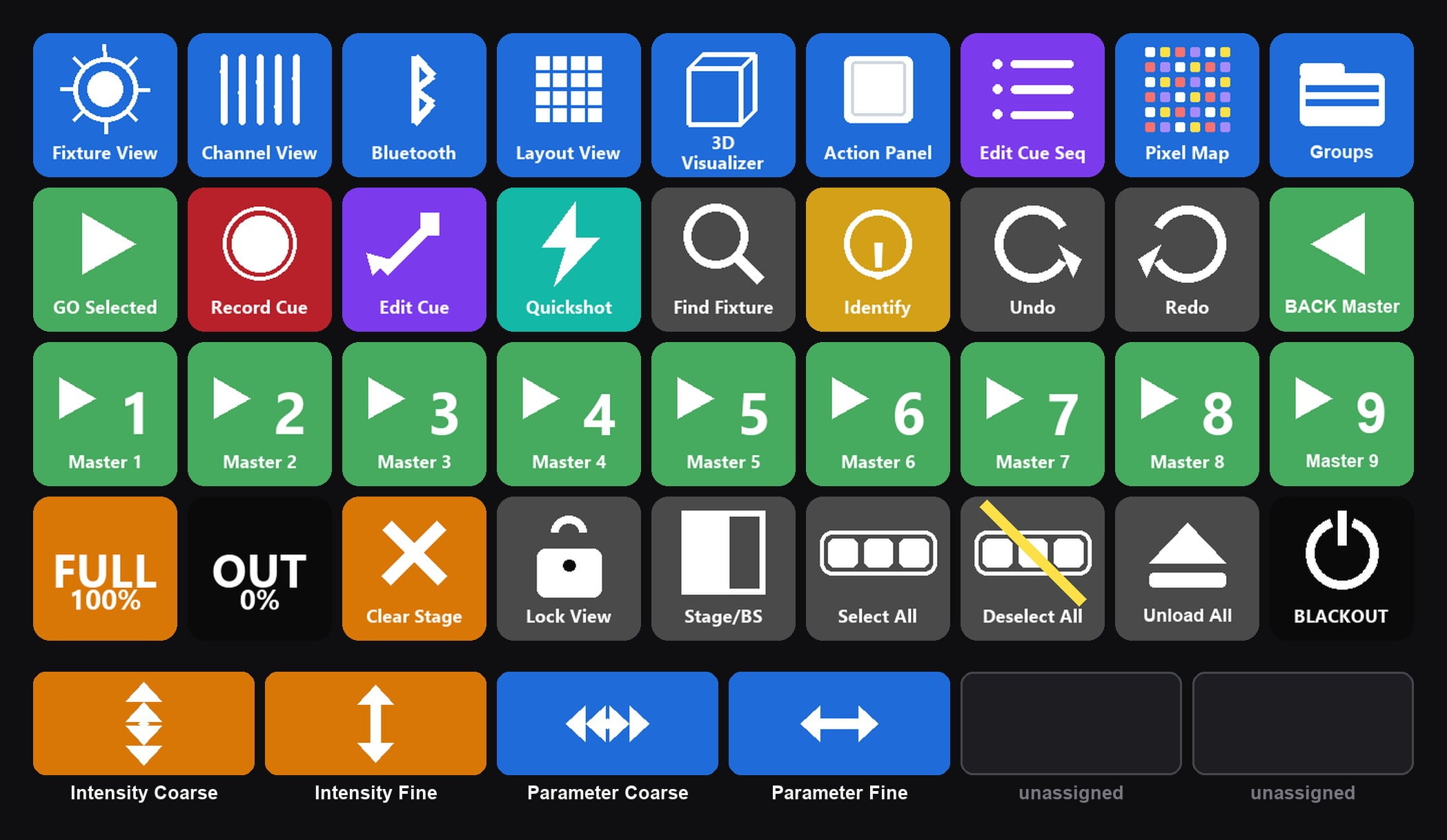
- + XL, 36 keys and 4 dials: every XL key keeps its column, plus a ninth column adding Groups Tab, BACK Selected Master, Master 9 and Unload All Cues. BLACKOUT stays in the bottom-right corner.
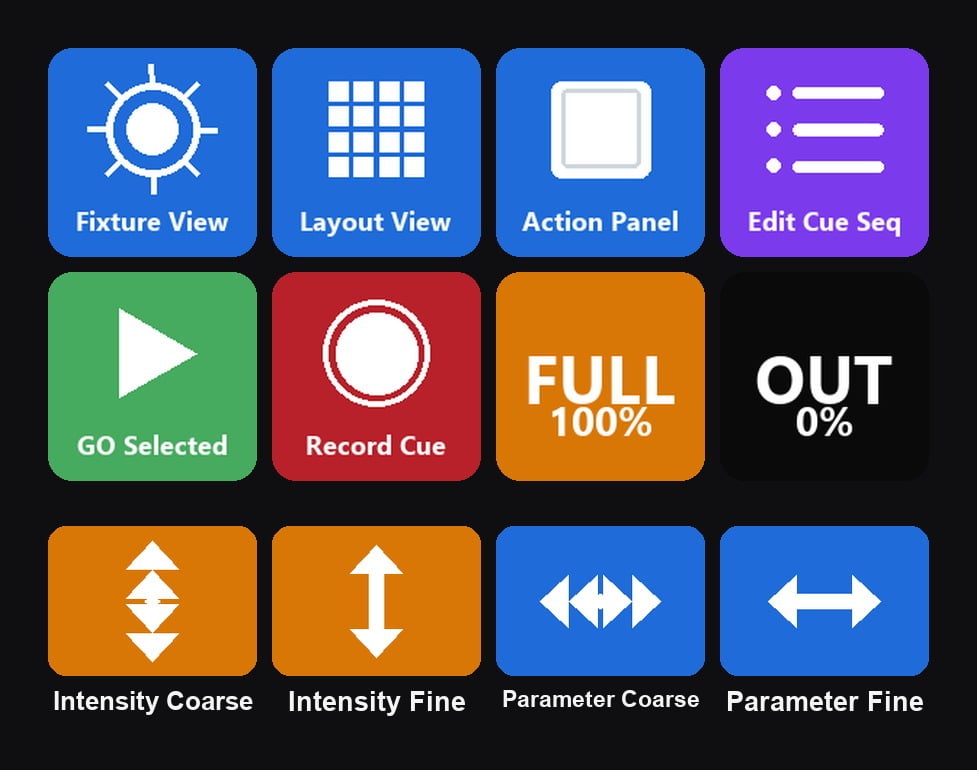
- Plus, 8 keys and 4 dials: Fixture View, Layout View, Action Panel, Edit Cue Sequence, GO Selected, Record Cue, FULL 100%, OUT 0%.
On the + XL and Plus, four dials come preconfigured: Intensity Coarse, Intensity Fine, Parameter Coarse and Parameter Fine. Turn to adjust, and press any dial to toggle between 1% and 0.1% steps.
How to import
- Download and unzip the pack on your Mac.
- Open the Stream Deck app.
- Plug in your Stream Deck (USB-C or USB-A, whichever your model uses). The app should recognize it.
- In the Stream Deck app, click the gear icon (top right) and choose the Profiles tab.
- Click + and choose Import….
- Select the .streamDeckProfile file matching your hardware (Standard, XL, + XL, or Plus).
- Confirm the import.
Activate the profile on your device
After import, the profile appears in the Stream Deck app but is not yet active on your hardware. To switch your Stream Deck to the new layout:
- In the Stream Deck app, find the profile dropdown at the top of the canvas (it shows the currently active profile name).
- Click it and choose Sidus Link Pro V2.4.
- Your Stream Deck hardware lights up with the 15, 32, 36, or 8 SLP-labeled keys.
Testing your buttons
Open Sidus Link Pro on your Mac and click anywhere inside the SLP window so it has focus. Then test:
- Press Fixture View on the Stream Deck. SLP should jump to Fixture View.
- Press 3D Visualizer. SLP should switch to the 3D Visualizer.
- Press GO Selected. The selected Cue Master should advance.
- Press Master 1. SLP should fire Master 1's loaded cue.
If a profile fails to import
Different Stream Deck app versions occasionally reject profiles built against an older schema. If the import fails or the imported profile doesn't appear in the dropdown, fall back to the manual setup using the included README.md and icons/ folder:
- In the Stream Deck app, drag a Hotkey action onto a key.
- Drag the matching icon PNG from the unzipped icons/ folder onto the same key.
- In the Hotkey field at the bottom, press the keystroke listed in the Keyboard Shortcuts PDF.
- Repeat for each key. The full layout takes about 15 minutes to build by hand.