
With the release of version 2.4, Sidus Link Pro introduces Action Panel, a brand-new full-screen view that turns your 10 Cue Masters into oversized, customizable buttons. It is built for one moment: when you need your eyes on the talent and your finger on the trigger. Programmers, gaffers, and DPs who used to hunt for a small touch target mid-take can now fire any cue from a button you cannot miss. And once the show is built, a 6-digit Lock Access seals the programming layer so an operator, a client, or a venue tech can run the show without ever seeing the programmer's interface. Available on Pro and MAX Plans.
Before You Start: Loading a Cue Master
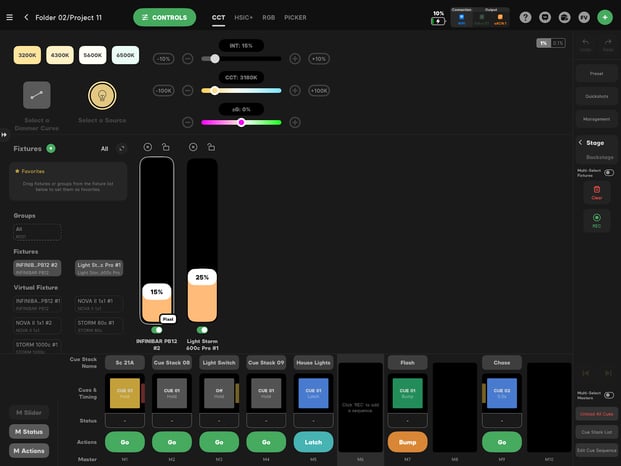
Before you can fire a cue in Action Panel, you must have a cue or Quickshot loaded onto one of your 10 Cue Masters. There are three ways to load one:
- Record: record a new cue directly onto a Cue Master.
- Drag a Quickshot: pull a Quickshot from the Quickshot Window onto a Master.
- Load a Cue Stack: open the Edit Cue Sequence Window and load an existing stack onto a Master.
Opening Action Panel
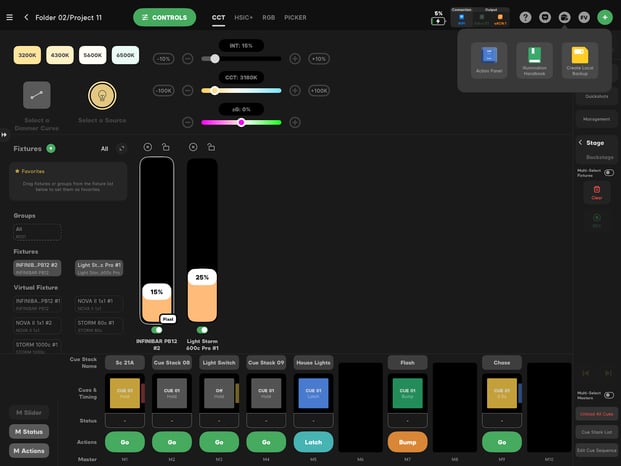
- Tap the Tools Button in the top right corner of the screen (new in 2.4).
- Select Action Panel from the dropdown menu.
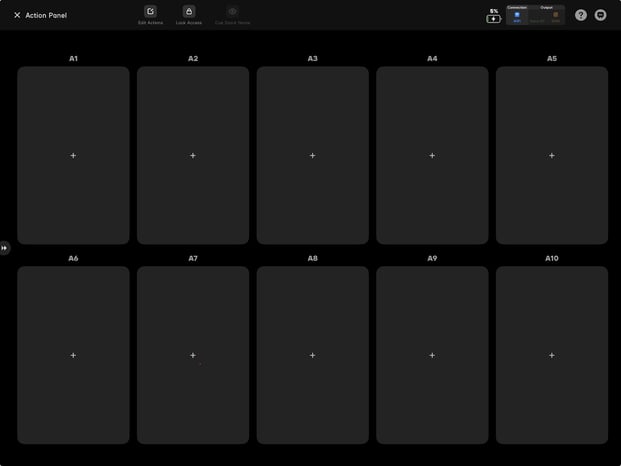
You will see ten empty button slots, each with a + icon waiting for a cue.
Adding a Cue to a Slot
Filling a slot is a drag-and-drop operation:
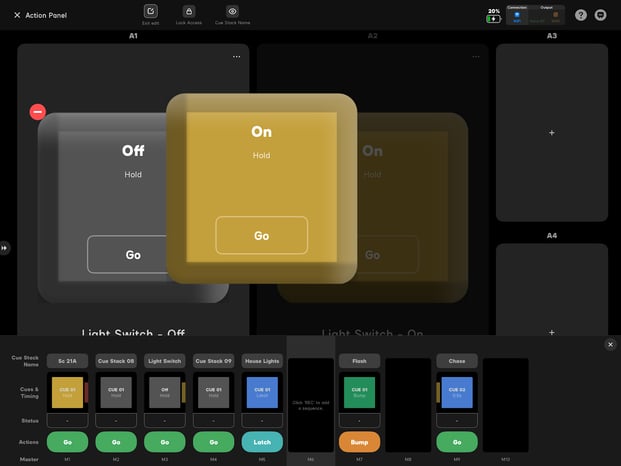
- Tap the + icon on any empty slot. The Cue Master Tray slides open showing every Cue Card loaded on every Master.
- Drag and drop a Cue Card onto the slot.
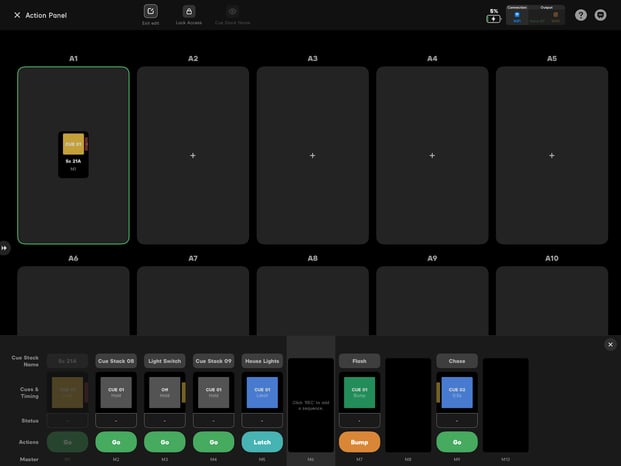
After the drop, a Load Action Window opens. It gives you two choices: Cue Stack Execution or Single Cue Execution. We cover both below.
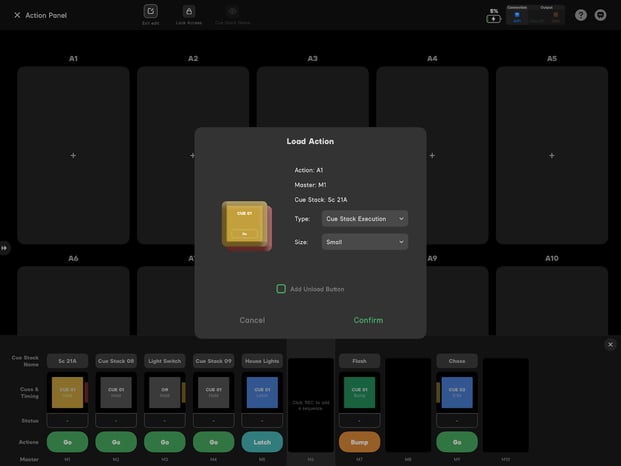
Cue Stack Execution
In Cue Stack Execution, the button acts as a GO button for the entire Master. Each press advances through the cue stack, exactly like a Cue Master. If a cue has a fade time or a wait time, the button respects it. The button follows the design and rules of your Cue Master.
Use this mode for: scene sequences, story progressions, anything you would otherwise step through one cue at a time.
Single Cue Execution
In Single Cue Execution, the button triggers one specific cue every time it is pressed. If Cue 1 on a stack is OFF and Cue 2 is ON, you can put the OFF cue on one button and the ON cue on another. No matter how many times you press the ON button, it always loads Cue 2.
Use this mode for: always-this-state buttons. House lights ON, blackout, fire FX, reset-to-default.
Mix Cue Stack buttons and Single Cue buttons on the same panel. Stacks for the sequence, Single Cues for the "panic" and "reset" buttons.
Button Behavior: Bump, Latch, Hold, Fade, and Wait
Action Panel buttons respect the rules of the underlying cue. No new vocabulary, no special configuration.
- Bump: if the cue is a Bump, the button is a bump. Hold to fire, release to clear.
- Latch: if the cue is a Latch, the button toggles on and off with each press.
- Hold: the button respects any Hold time set on the cue.
- Fade and Wait Times: fade and wait times defined on the cue carry through to Action Panel.
The button is your friend. It is smarter than it looks, by design.
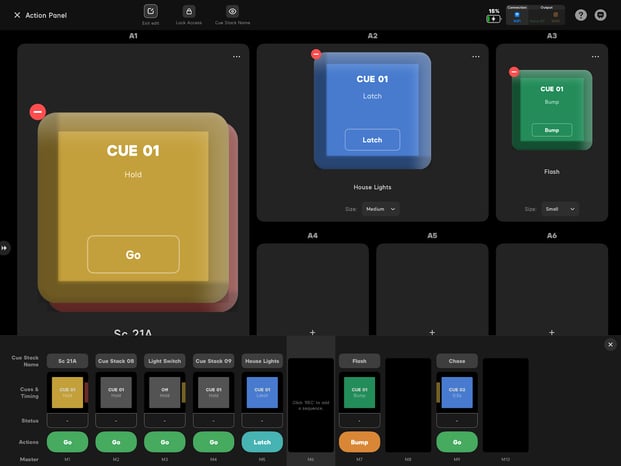
Button Sizes: Small, Medium, Large
Once a cue is on a button, press Edit to resize it or remove it.
- Small: standard footprint.
- Medium: 2x footprint.
- Large: 4x footprint. Two Large buttons fill the entire screen.
Mix sizes to build a layout that matches the show. Use Large for hero GO buttons that the client cannot miss, Medium for scene transitions, and Small for everything else.
Button States: Visual Feedback for the Operator
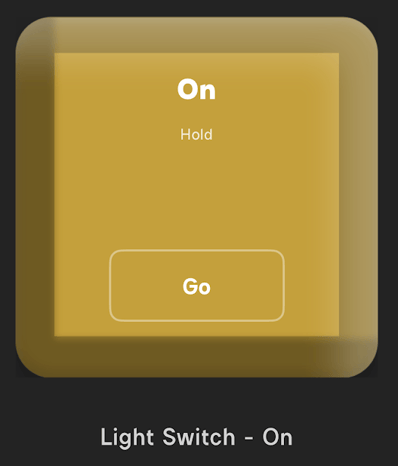
Each button gives the operator visual feedback so the interface keeps up with the show. The operator never has to track which cue is live.
- Cue Name: the active cue name is always visible on the button.
- Loaded State: the button lights up green when its cue is loaded.
- Cue Stack Name: the parent Cue Stack name is displayed so the operator knows which stack the cue belongs to.
Button Options: The 3-Dot Edit Menu
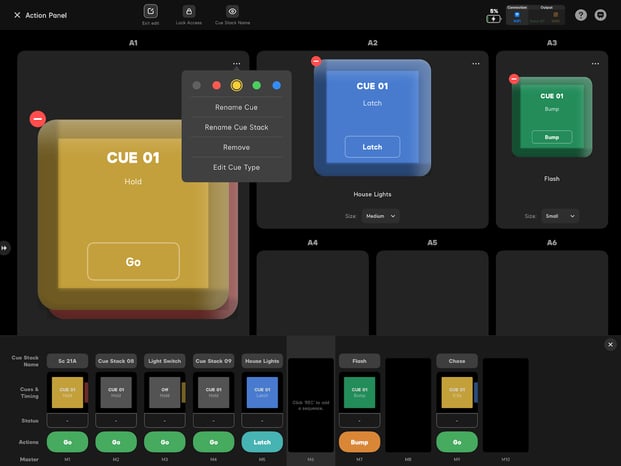
When in Edit mode, press the 3 dots on any button to edit it.
- Change the Cue Card Color: for visual grouping.
- Rename Cue: override the cue name on the button face.
- Remove Cue: clear the cue from the slot.
- Edit Cue Type: switch between Cue Stack Execution and Single Cue Execution after the fact.
Reordering Buttons
Deployed buttons can be reordered by dragging them onto an open slot or onto an existing button to swap.
- Press and hold on the Button tile (the surrounding tile, not the button itself) to pick it up.
- Drag and drop onto another slot.
Build the layout in any order, then arrange it for muscle memory before locking the show.
Quickshots on Cue Masters (New in 2.4)
New in 2.4: Quickshots can now live on a Cue Master. For Sidus Bluetooth users, this is the long-requested upgrade: Quickshots and cues on the same execution surface.
- Drag a Quickshot onto a Master, then drop that Master onto Action Panel.
- Double tap the Quickshot card on the Master to edit the Quickshot.
Bluetooth scenes and DMX cues now fire from the same button bank. Combined with Quickshots for DMX, a single Quickshot captures the whole stage and fires from one big button.
Lock Access: Secure the Programming Layer
Once your Action Panel is built, secure the programming layer with a passcode.
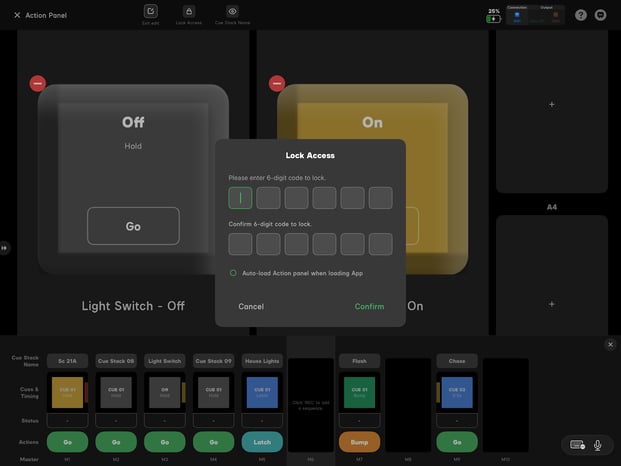
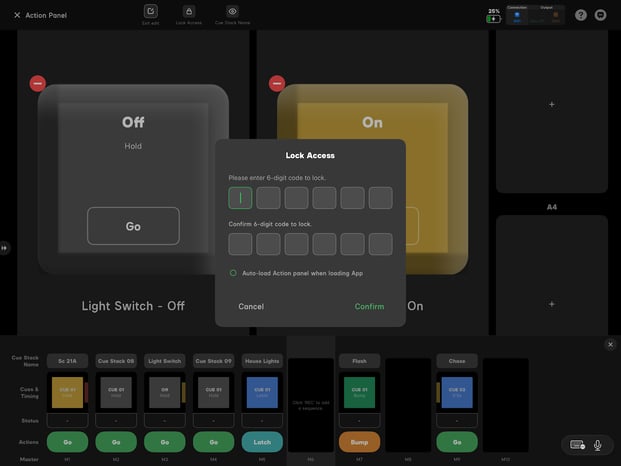
- Tap Lock Access in the top bar of Action Panel.
- Set a 6-digit passcode. Six digits, not four. (Better than your birthday or 123456.)
- Confirm the passcode.
Once locked, Edit Mode disappears, drag-and-drop is gone, and all anyone can do is tap the buttons you set up.
Locked Mode: What the Operator Sees
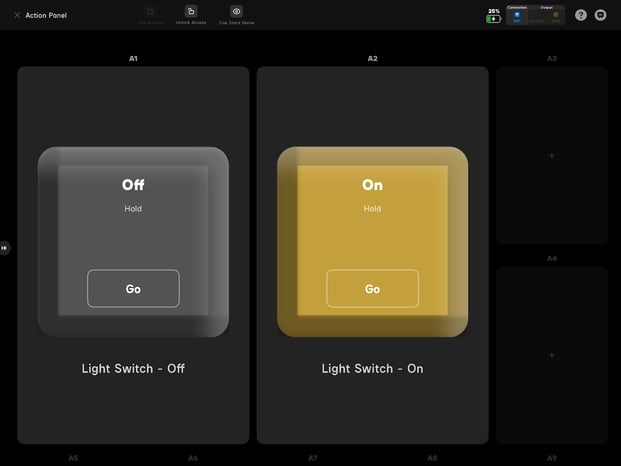
When Action Panel is locked, the operator sees only the cue buttons and a stripped-down top bar.
What stays visible (the operator needs these):
- Battery Status: the iPad's charge level.
- Connection Status: DMX, network, and Sidus Bluetooth health indicators.
What goes away (everything programming-related):
- Edit Mode: the resize-and-remove controls.
- Master Tray: the drag-and-drop drawer of cue cards.
- Programmer Interface: every other view in Sidus Link Pro.
The operator can run the show. They cannot change the show.
Auto-Load Action View
When Action Panel is locked, Sidus Link Pro autoloads the show file and opens directly to Action Panel every time the app is launched. The operator never sees the programmer's interface. They open the app, the buttons are there, and they can run the show.
Use Case: drop the iPad on a stand at front-of-house. The venue tech does not need to learn Sidus Link Pro. They tap the buttons you set up. That is the whole job. If the iPad is force-quit and re-opened, or restarted overnight, the next launch still goes straight to the locked Action Panel.
Conclusion: The Professional Handoff
Most lighting consoles assume the programmer is the operator. Sometimes that is true. Often it is not. Action Panel separates the two roles. Program the show in Fixture View on Mac or iPad. Execute from oversized buttons in Action Panel. Lock the panel with a passcode. Hand the iPad to a client, an operator, or a venue tech. They run the show. They cannot change the show.
Pair Action Panel with Mac OS Desktop support and the 100+ Keyboard Shortcuts that ship in V2.4 and you get the full workflow: design on Mac, deploy to iPad, run from Action Panel.
Action Panel is available on Pro and MAX Plans. For the full V2.4 changelog including Quickshots for DMX and the additional updates, see What's New in V2.4.