
Overview
This guide walks you through setting up DMX and CRMX control in Sidus Link Pro. The flow is the same whether you use a Sidus One (one universe) or a Sidus Four (up to four universes). Key differences between the two are called out in each section.
If you have not set up your first project yet, start with Getting Started with Sidus Link Pro first, then come back here.
Before You Start
You will need:
Sidus Link Pro installed and signed in, on the Pro or MAX plan.
A Sidus One or Sidus Four transmitter.
One or more CRMX-enabled lighting fixtures, or CRMX receivers wired into DMX fixtures.
The password printed on the back of your transmitter (Sidus One and Sidus Four both generate their own Wi-Fi networks with default passwords).
Which transmitter should you use? See Sidus One vs. Sidus Four: Which Hardware Do I Need?
The Four Steps
You need to complete four things (order flexible, but patching first saves confusion):
Connect your iPad to the transmitter.
Patch the fixtures you want to control into your scene.
Pair your CRMX fixtures with the transmitter.
Set the DMX address and profile on each light to match what you patched.
Step 1: Connect Your iPad
With Sidus One
Attach the three antennas to your Sidus One, then power it on. Line-of-sight range is about 30 ft (10 m).
On your iPad, go to Settings → Wi-Fi. Join the network named Sidus One-XXXXXX. The password is printed on the back of the unit.
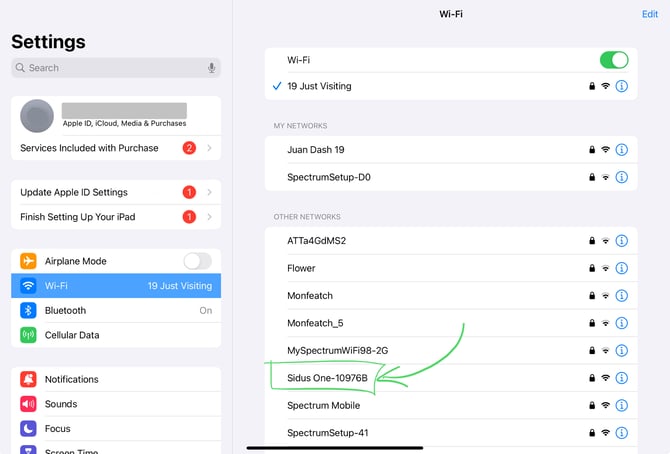
Still in Settings, go to Privacy & Security → Local Network. Enable the toggle for Sidus Link Pro (only required on first launch).

Return to Sidus Link Pro. Tap the Wi-Fi icon in the top bar to confirm the iPad is connected.
Details: Connecting Sidus One to Your iPad.
With Sidus Four
Sidus Four supports two connection methods:
Wi-Fi - same flow as Sidus One. Join the Sidus Four-XXXXXX Wi-Fi network, enable Local Network permission.
Ethernet - connect Sidus Four to your router or a network switch. Connect your iPad to the same network via Wi-Fi. Sidus Four is visible over both wired and wireless connections.
Details: Network Requirements and Wi-Fi Setup and Sidus Four.
Step 2: Patch Your Fixtures

In your scene, tap the green + in the top right, then Add New Fixtures.
Tap the grey + rectangle to open the Select a Profile window. Browse to your manufacturer, series, model, and DMX profile.
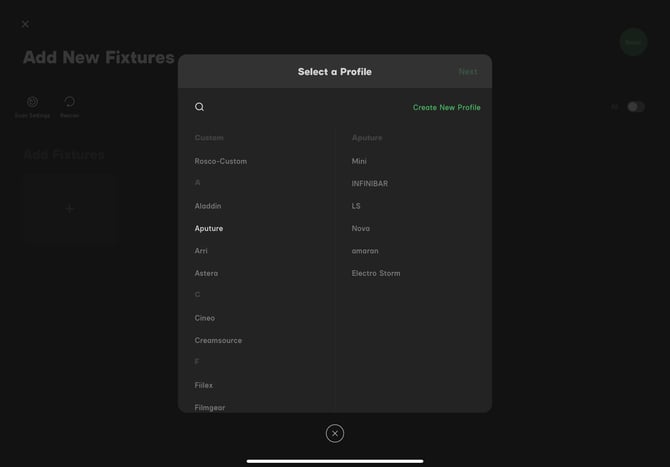
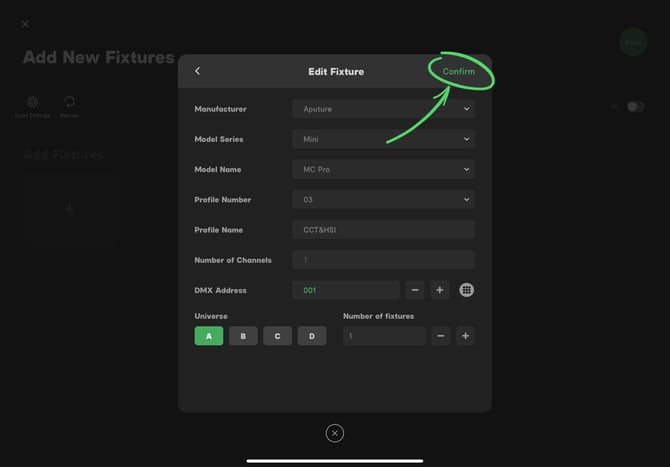
For this example, patch an Aputure MC Pro in Mode 03: CCT & HSI. Navigate to Aputure → Mini → MC Pro → Mode 03:CCT&HSI, then tap Next.
In the Edit Fixture window, set the DMX Address, Universe, and Number of Fixtures (use this to patch many fixtures at sequential addresses). Tap Confirm.
The fixture now has a green check mark. Add more fixtures using the grey +, or tap Save to commit.
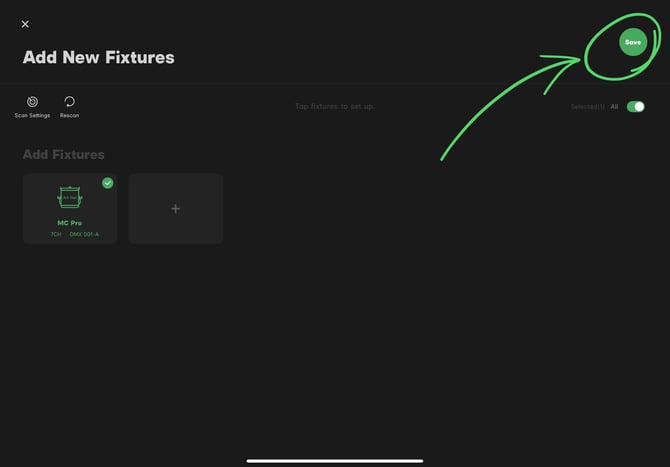
Write down which mode/profile you patched each light in. The Fixture Management page does not show the profile at a glance.
Once you tap Save, the light appears on the stage and in the Fixtures list.
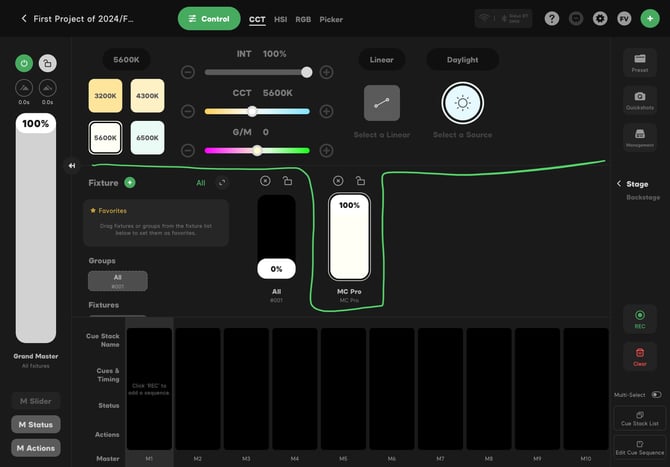
Full walkthrough: Patching a DMX Fixture.
For supported Aputure fixtures (STORM, INFINIBAR, INFINIMAT, MC Pro, and more), you can skip manual patching with Auto-Patching.
Multiple Universes (Sidus Four)
On Sidus Four, use the Universe field in the Edit Fixture window to distribute fixtures across Universe A, B, C, and D.
Step 3: Pair Your CRMX Fixtures
On each CRMX-enabled fixture or receiver, navigate to the wireless / CRMX settings menu and send the Unlink (or Unpair) command. This clears any previous transmitter pairing.
On your Sidus One or Sidus Four transmitter, press the CRMX button. The transmitter broadcasts a linking handshake to nearby unlinked fixtures.
Fixtures and receivers within range pair with your transmitter.
On Sidus Four, each output pairs separately. Repeat the process for each output that needs fixtures paired.
CRMX-enabled fixtures remember their last paired transmitter even after a power cycle. If you return to set the next day, you do not need to re-pair.
Configure Sidus Four Outputs Remotely
Sidus Four has four independent wireless outputs. Each output can broadcast a different universe. Configure them remotely from the app:
Tap Connection Management (the Wi-Fi icon in the top bar), then open Network Transceivers.
Select your Sidus Four and set each output to a universe (A, B, C, or D).
Adjust Output Power (5, 10, 40, or 100 mW), Wi-Fi Channel, and 2.4 GHz CRMX Blocking as needed.
Step 4: Set DMX Address and Profile on Each Light
For each fixture, use its on-board menu to set the DMX Address and DMX Profile to match what you patched in Sidus Link Pro. The exact menu name varies by manufacturer.
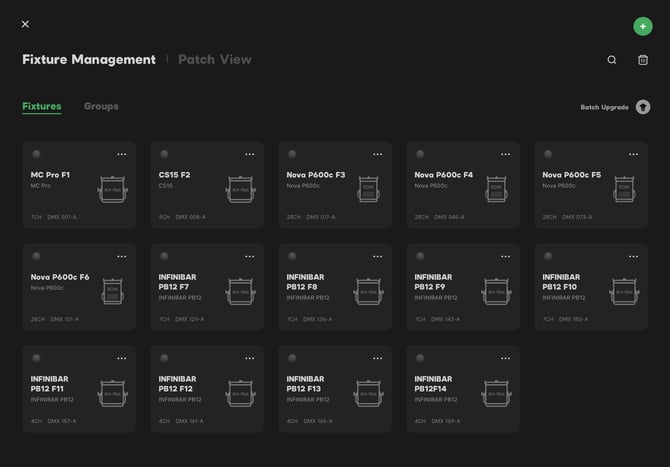
Use the Fixture Management page (right bar → Management) as your reference. It shows every patched fixture with its DMX address and universe.
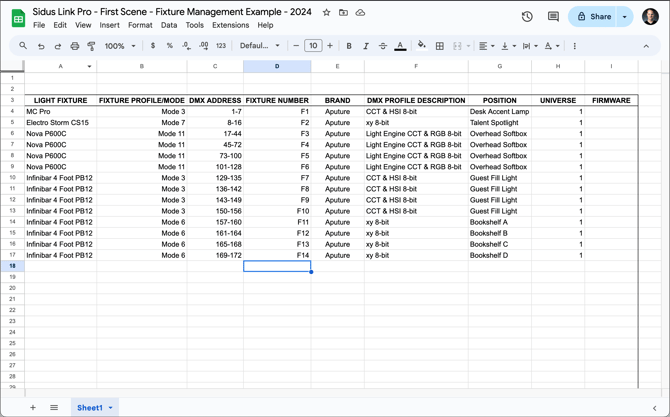
Rename each fixture with a fixture number (F1, F2, etc.) as you patch, so the Fixture Management page matches your rig plot. To check what profile a fixture was patched in, tap the ••• on the fixture's tile and then Edit Fixture. Do not change the DMX Address or Universe while checking.
Most Aputure fixtures with a 5-pin DMX input must be left on the DMX Address screen to respond to CRMX or DMX signals. If the display shows anything else, the fixture falls back to local control and ignores your commands.
Firmware updates frequently add or fix DMX profile behavior. Keeping your fixtures on current firmware is the simplest form of preventative troubleshooting. See Updating Fixture Firmware.
Default Output Settings
Sidus Link Pro outputs sACN Multicast by default. This is the recommended protocol and works with Sidus One and Sidus Four out of the box. You can switch to Art-Net in Scene Settings → Output Protocol if your rig requires it.
You're Done
You now have wireless DMX control. Adjust parameters on the stage and your lights respond.
Next Steps
Control DMX fixtures in detail: Controlling DMX Fixtures
Learn more about Auto-Patching: What is Auto-Patching?
Record cues: Recording and Managing Cues
Preview your rig in 3D: 3D Visualizer
DMX fundamentals (video): User Guide Video Series Episode 7
Need Help?
See Getting Help & Support for the fastest way to reach the Aputure team.