
Overview
Sidus Link Pro is Aputure's professional wireless lighting control app for iPad. This guide gets you from fresh install to controlling your first lights.
Before You Start
You will need:
An iPad running iPadOS 17.4 or later. See Compatible iPad Models and System Requirements.
Sidus Link Pro installed from the App Store.
A Sidus account. You can create one the first time you open the app.
Compatible Aputure or amaran lights.
Choose Your Path
How you connect to your lights depends on what you have:
Getting Started with Sidus Bluetooth - Control Aputure and amaran lights over Sidus Bluetooth. No transmitter required. Works on the Free Plan.
Getting Started with DMX Control - Full DMX and CRMX control via a Sidus One or Sidus Four transmitter. Requires Pro or MAX.
Not sure which transmitter you need for DMX? See Sidus One vs. Sidus Four: Which Hardware Do I Need?
Want to compare what each plan unlocks? See Plans Overview: Free vs. Pro vs. Max Compared.
First Launch: Create a Project
Regardless of path, start here:
Launch Sidus Link Pro and sign in (or create an account).
On the Projects page, tap the folder icon with the + to create a new project. Name it after the production (for example, "Bacon Commercial - Apr 2026").

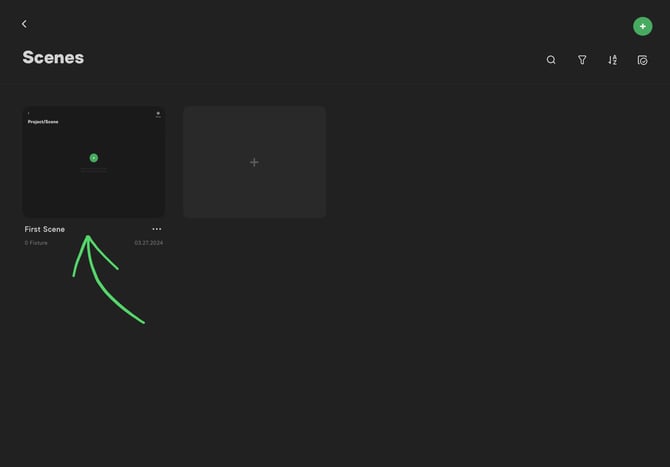
Inside the project, tap the green + to create a Scene. Each scene is an independent show file - use one per setup, location, or lighting package.
Tap the new scene to open it. You will see the main Sidus Link Pro interface. For a tour, see Understanding the App Interface.
The Demo project cannot output data. Use a real project for your shoot.
Projects vs. Scenes
Projects are folders for a production (for example, a single film or commercial). Inside a project, you create Scenes - each scene is an independent show file with its own patched fixtures and cues. Use scenes to separate different locations, setups, or lighting packages within the same production.
Continue Your Setup
Pick the guide that matches your hardware:
Bluetooth only? Getting Started with Sidus Bluetooth
Using a Sidus One or Sidus Four for DMX? Getting Started with DMX Control
Next Steps
Learn the interface: Understanding the App Interface
Lighting control fundamentals: User Guide Video Series
Record your first cues: Recording and Managing Cues
Preview your rig in 3D: 3D Visualizer
Watch the quick start video: Quick Start Guide Video
Need Help?
See Getting Help & Support for the fastest way to reach the Aputure team.