
Importing brings a show file from outside the app into Sidus Link Pro, with its patched fixtures, groups, cues, and layouts intact. Use it to open a show a colleague sent you, restore a local backup or move a show to a device signed in to a different Sidus account.
Same account, different device? You may not need to import at all. Sidus Link Pro syncs show files through the cloud to every iPad and Mac signed in to the same account. See Library and Cloud Services.
Folders, Projects and Show Files
A Folder is a directory for a production. Inside a Folder, each Project is an independent show file with its own patched fixtures and cues. When you import, you pick the show file first, then choose the folder it goes into. For more on how projects are organized, see Getting Started with Sidus Link Pro.
Before You Start
- Save the show file somewhere the Files app can reach: On My iPad, iCloud Drive, AirDrop or a connected drive. On Mac, any Finder location works.
- Update Sidus Link Pro to the latest version. A show file saved on a newer version of the app may not open on an older one. See How to Find Your App Version.
- If the show uses custom DMX profiles, the person who sent it should also send those profiles. See Sharing a Custom DMX Profile.
Import a Show File
- Open Sidus Link Pro and go to the My Folders page.

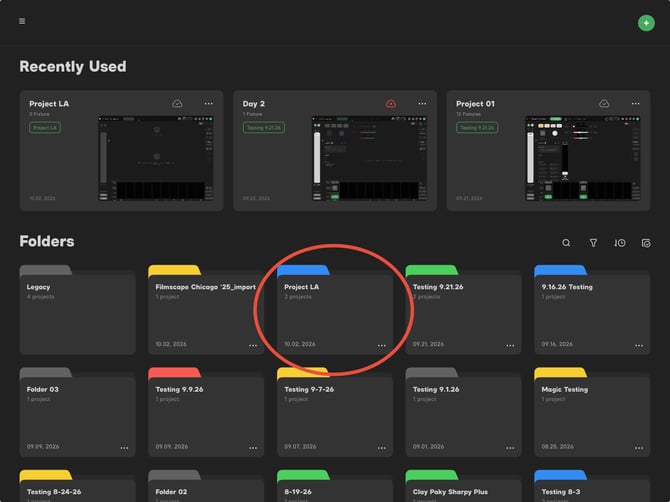
- Choose the Folder you'd like to import the Project to.
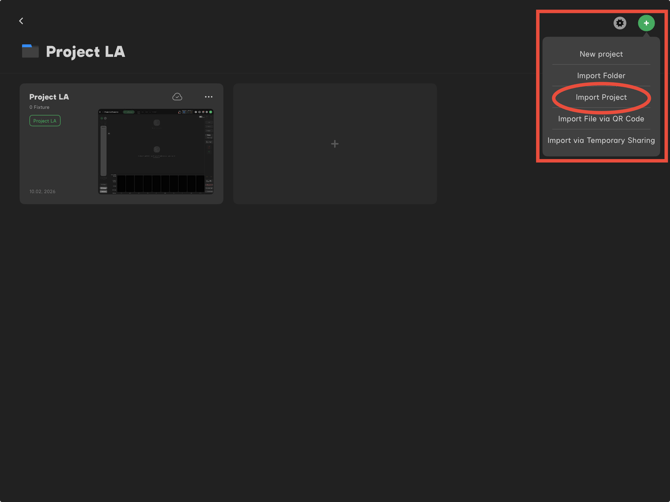
- Tap the green plus symbol in the top-left of the screen, then tap Import Project from the dropdown menu.
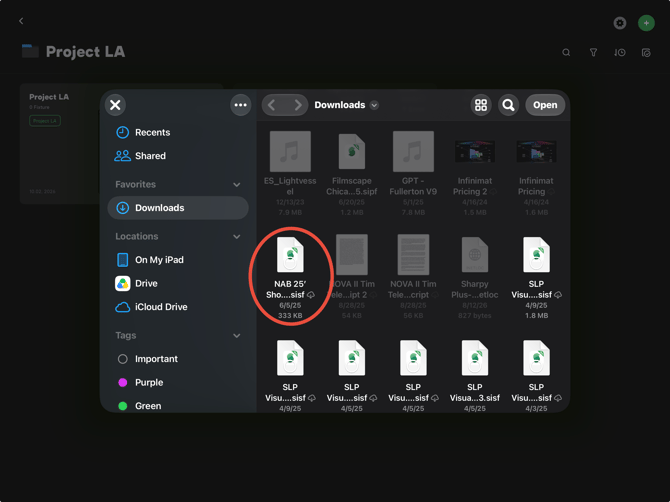
- Browse to the .sisf show file in Files (or Finder on Mac) and select it.
- Wait for the import to finish. The show file appears as a Project inside the Folder you chose.
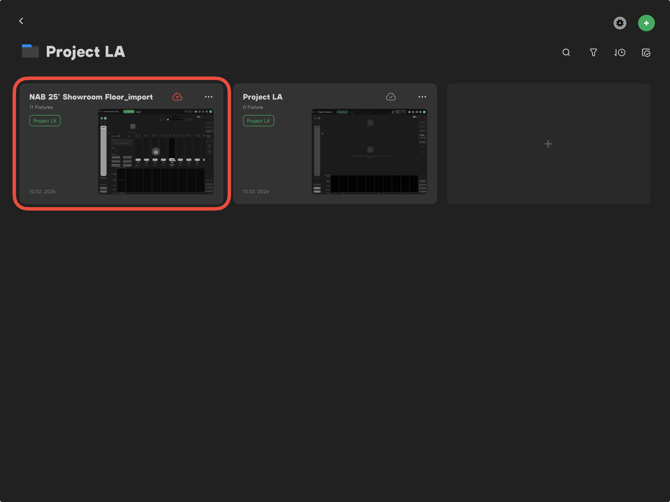
- Tap the Project to open it.
To bring in a whole Folder with all of its Projects instead of a single show file, use Import Folder. Both options are available on the Folders screen and the Projects screen.
After You Import
- Reconnect your hardware. An imported show brings its patch, but it does not bring the connection to your transmitter. Connect your Sidus One or Sidus Four before sending output. See Connecting Sidus One to Your iPad.
- Check your universes and output. Confirm that the protocol and universe settings match the rig you are on today, especially if the show was built for a different venue. See Configuring DMX Output.
- Re-add Sidus BT fixtures if needed. Sidus BT fixtures are tied to the physical fixtures, so a show built on someone else's fixtures will need your own fixtures connected. See Getting Started with Sidus Bluetooth.
- Verify on one fixture first. Bring a single fixture up and watch the DMX Output Window before running cues across the whole rig.
Making a File to Share or Import Later
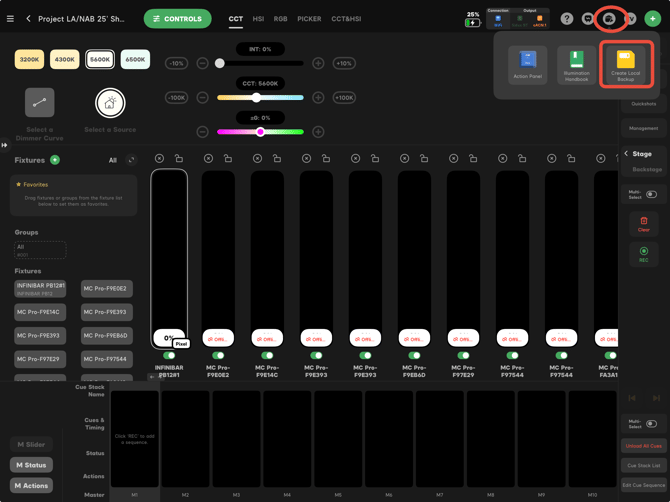
To save a copy of the current show without closing it, open the Tools menu and tap Create Local Backup. That backup is a show file that you can send to a colleague or import later using the steps above.
Troubleshooting
- The file is grayed out and can't be selected. It is not a Sidus Link Pro show file, or it is still downloading from iCloud. Wait for the cloud icon next to the file to clear, then try again.
- Fixtures show up but the wrong channels respond. The show likely uses a custom profile you don't have, or a different version of it. Import the sender's custom profiles, then re-patch the affected fixtures. See Patching a DMX Fixture.
- The import doesn't finish. Keep the app open and in the foreground until the import completes, and make sure there is enough free storage on the device.
Related Articles
- Getting Started with Sidus Link Pro
- Library and Cloud Services
- Sharing a Custom DMX Profile
- Mac OS Desktop
Need Help?
See Getting Help & Support for the fastest way to reach the Aputure team.